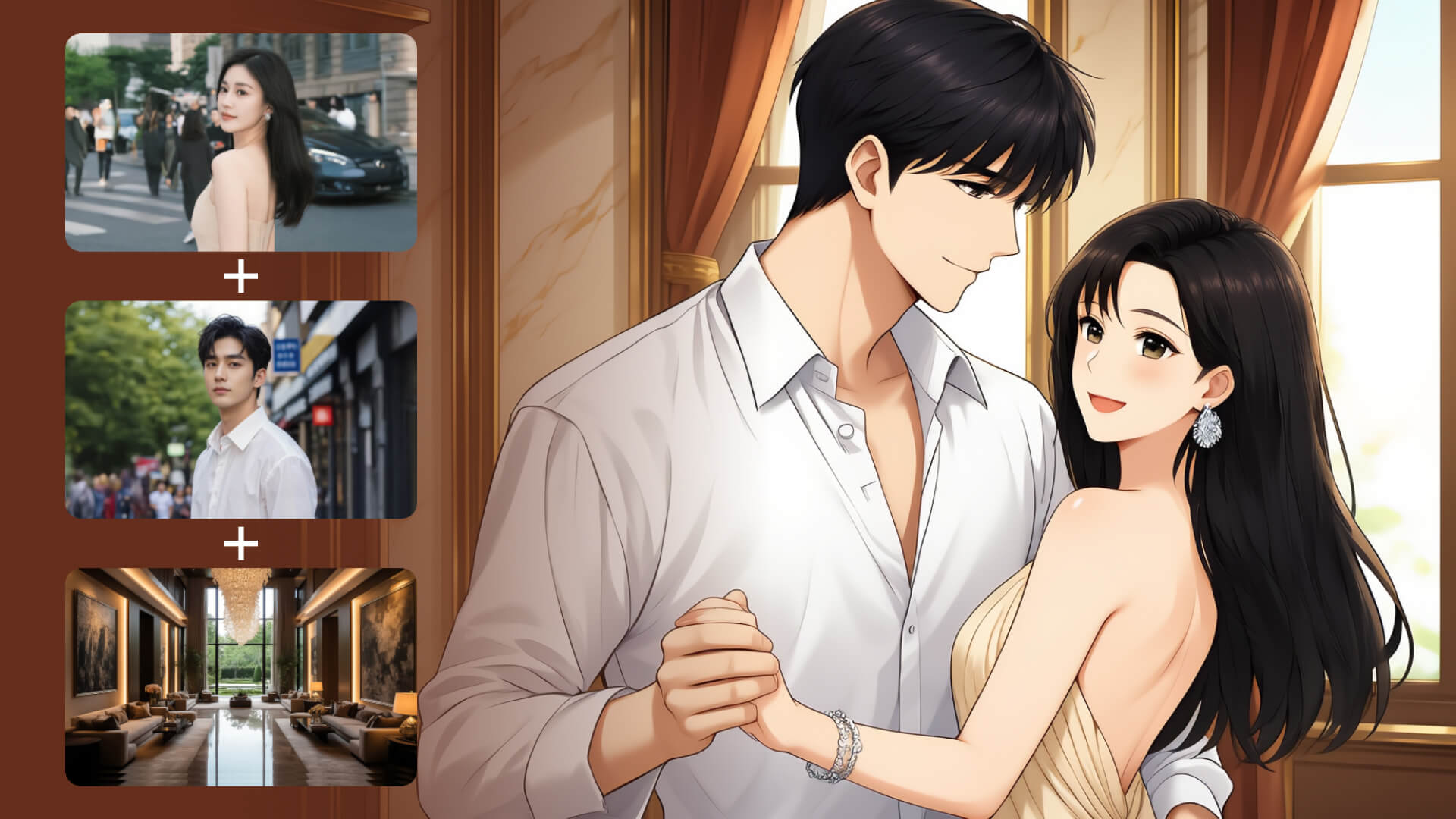
Kling AI Video O1 — the world’s first unified multimodal video model — is a brand-new creative engine for creators to unlock endless creative possibilities.
Kling O1, based on the Multi-modal Visual Language (MVL) concept, uses natural language to combine videos, images, elements, and other multimodal descriptions to precisely understand your intentions, making the creative process more intuitive and efficient.
KLING O1 Video Model's Five Highlights
1. Input Anything: World's First Unified Multimodal Video Model
The KLING O1 Video Model marks an industry first by integrating diverse video tasks into a single unified architecture.
Capabilities include Reference-based Generation, Text-to-Video, Keyframe Interpolation (Start/End Frame), Video Inpainting, Transformation, Stylization, and Video Extension. This integration eliminates the need to jump between multiple models or tools, allowing users to execute an end-to-end creative pipeline—from ideation to modification—in one place.
2. Understand Everything: Multimodal Input, All-in-one Creation & Modification
With the model’s deep semantic understanding, everything — including images, videos, elements, texts, etc — could be included in your input to Kling O1. The model goes beyond the limitations of modality, integrating and understanding different perspectives of an image, video, or character you upload, to return outputs with precision.
Along with the new model, Kling AI is also launching a brand-new creative interface at https://app.klingai.com/global/omni/new
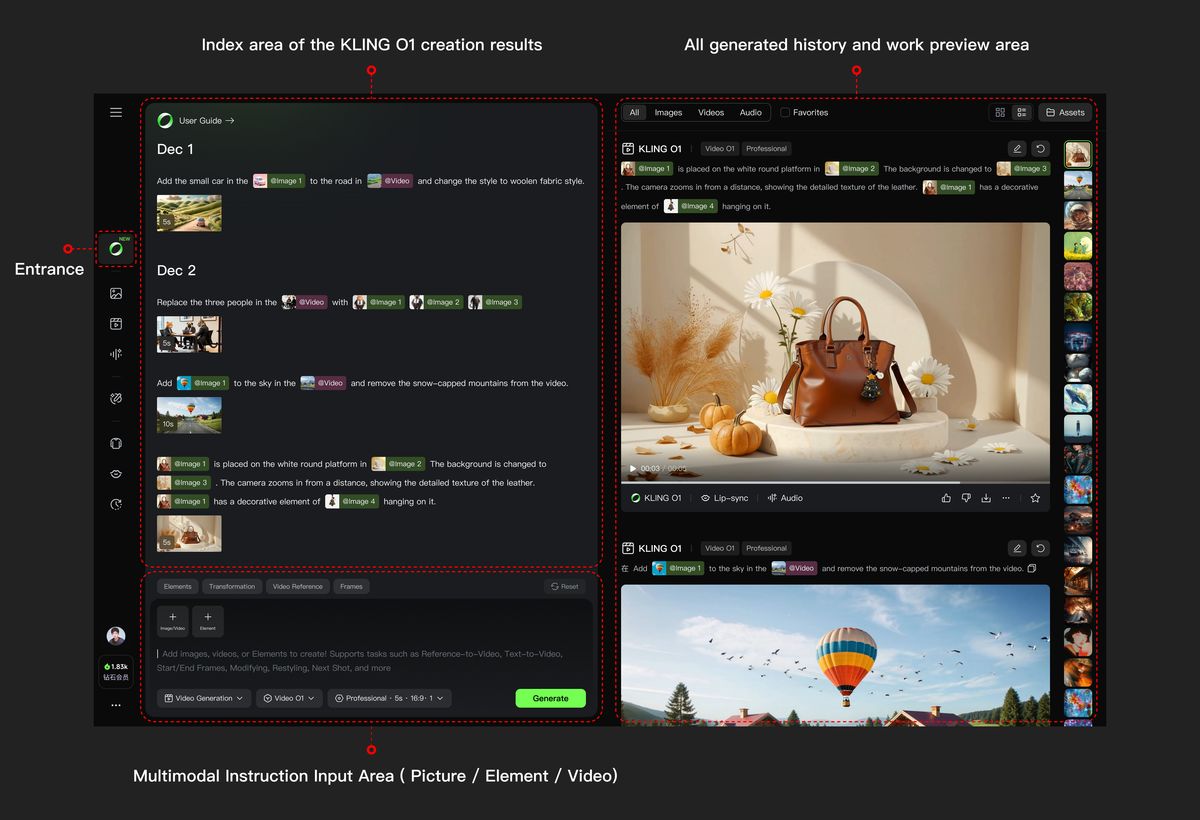
At the same time, Kling O1 turns tedious post-production processes into simple conversations. There’s no need for manual masking or keyframing; simply input prompts like “remove bystanders”, “change daytime to dusk”, or “replace the main character’s outfit”, and the model will understand the visual context. From local subject replacement to entire-video restyling, the model will automatically complete pixel-level semantic reconstr
uction. Your prompts become the most efficient editing tool.
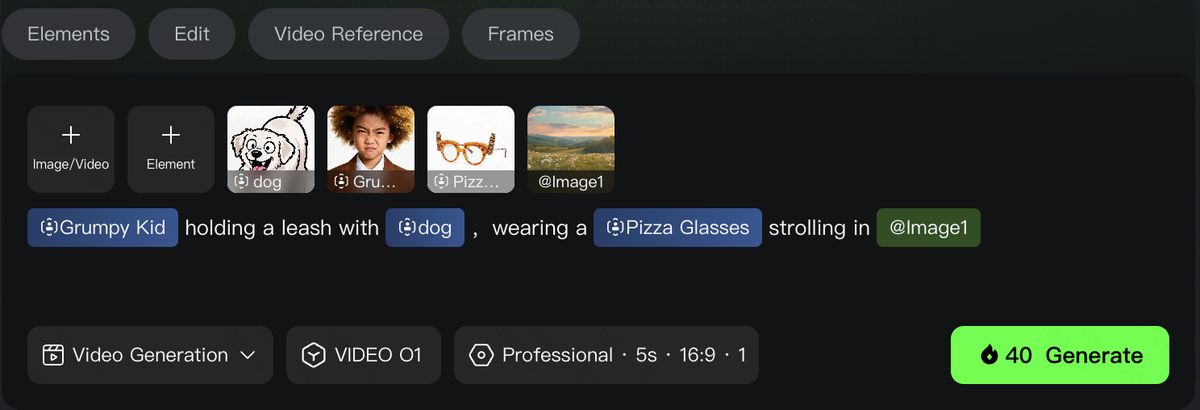
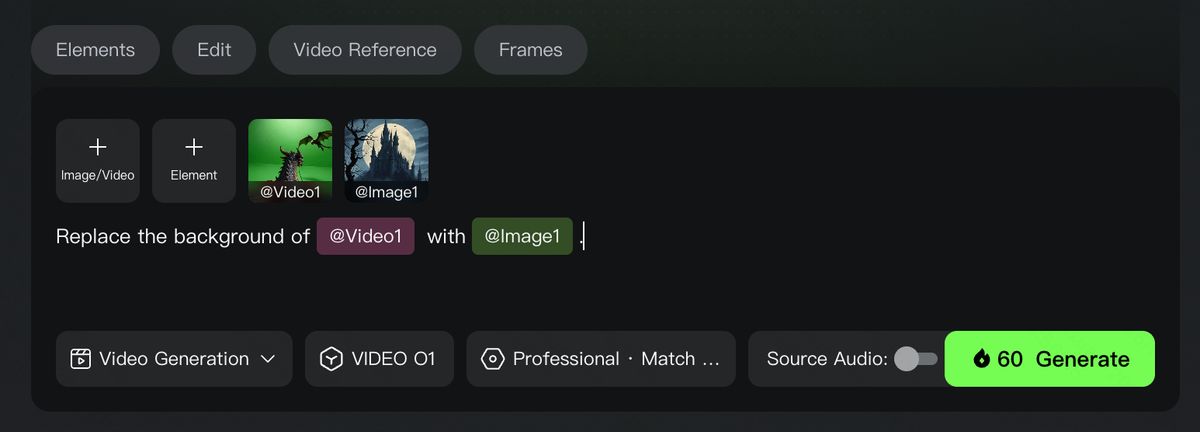
- In addition to the examples above, you can also achieve the following with Kling O1’s multimodal prompt input:
- Image/Element Reference: Supports reference images/elements, including characters, items, backgrounds, and more, to generate with more creativity and consistency.
- Input-based Modification: Supports Inpainting/outpainting, or changing shot compositions or angles. It also supports localized or full-scale adjustments, such as modifying/swapping subjects, backgrounds, partial areas, styles, colors, weather, and more.
- Video Reference: Supports using reference video content to generate previous or next shots within the same context or set. It can also reference video actions or camera movements for generation.
- And more capabilities such as Text to Video, Start & End Frames, etc
3. All-in-One Reference: Video Consistency Now Resolved
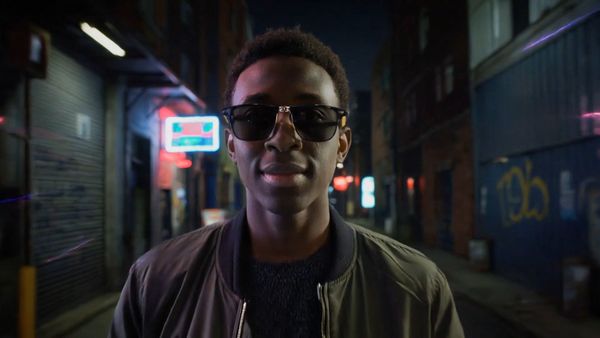
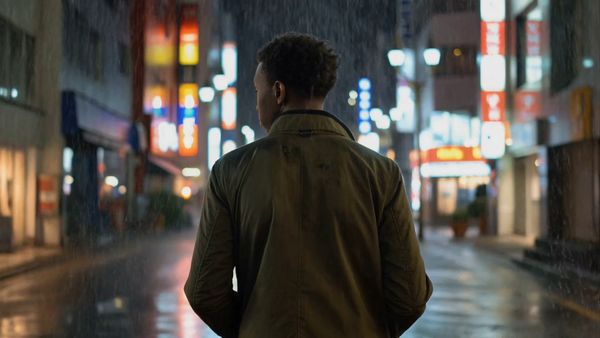
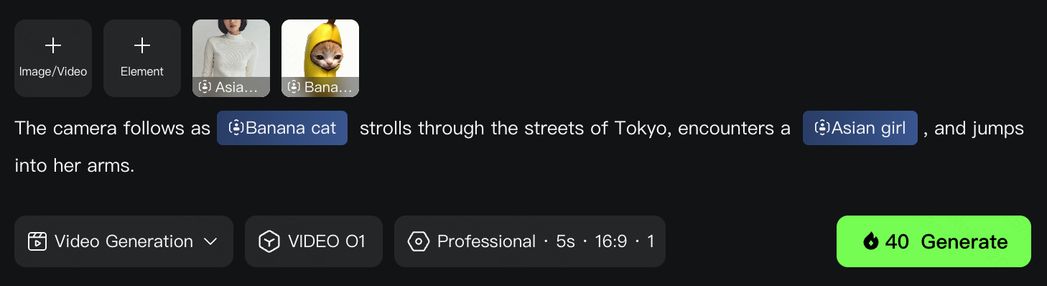
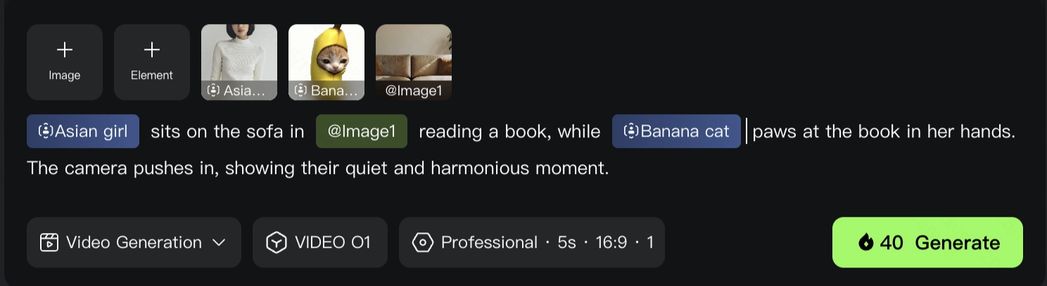
Kling O1 comes with enhanced capabilities to understand image and video inputs better, and supports the building of elements with images from multiple angles. With reference images/elements, Kling O1 can remember your characters, props, scenes, etc, just like a human director, to maintain consistency, accuracy, and continuity regardless of how the camera moves or how the scene develops.
Element
| [Shot 1]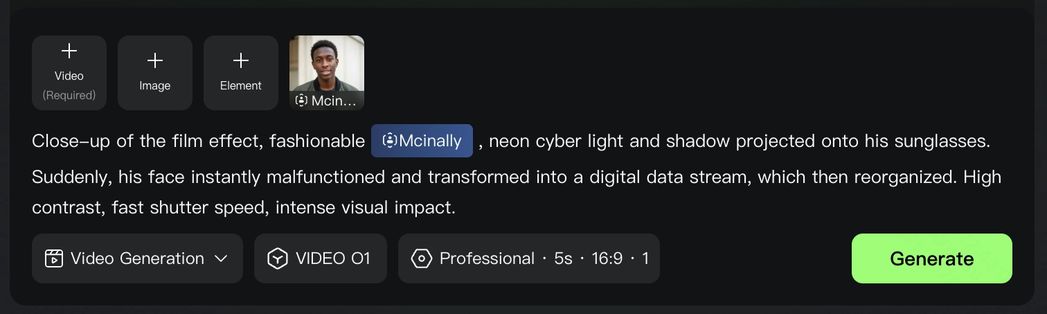 | [Shot 2]
|
  |  | |
[Shot 3]
| [Shot 4]
| |
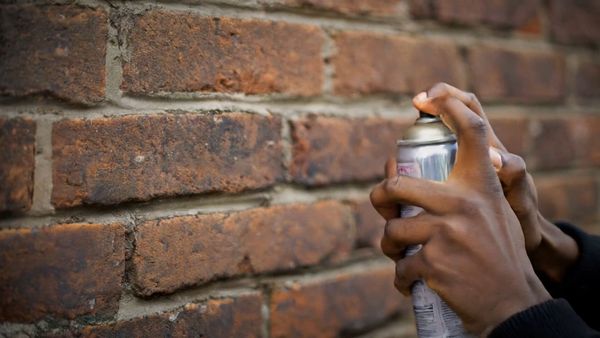 | 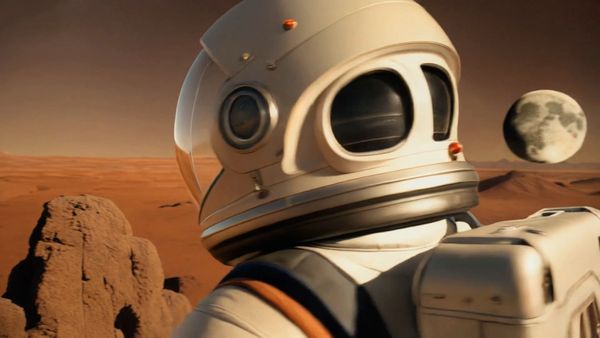 |
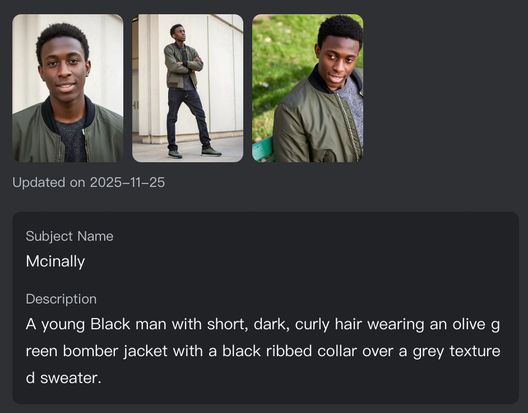
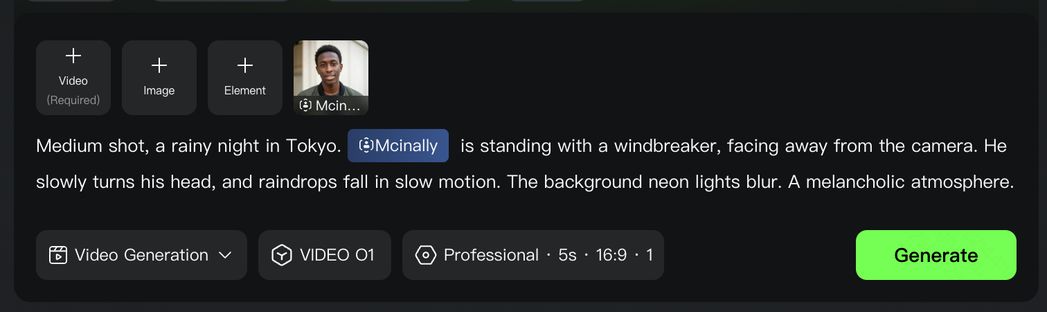
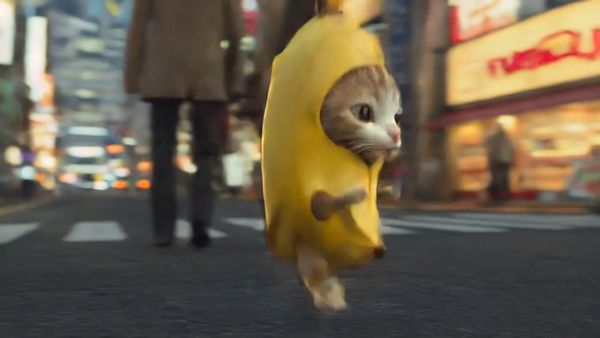
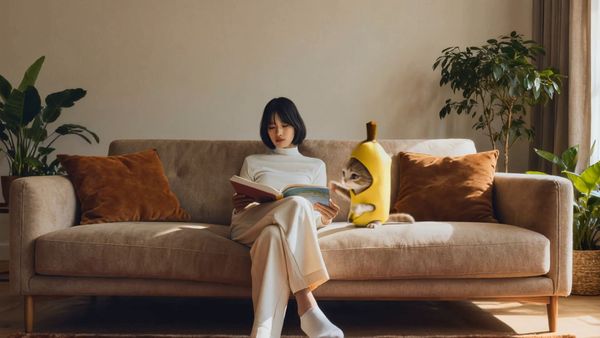
Video O1 goes far beyond single characters or objects, featuring powerful multi-subject fusion capabilities. You have the freedom to mix and match multiple subjects or blend them with reference images.
Even in complex ensemble scenes or interactions, the model independently locks onto and preserves the unique features of every character and prop. No matter how drastically the environment changes, Video O1 ensures industrial-grade consistency for each of your actor across every shot.
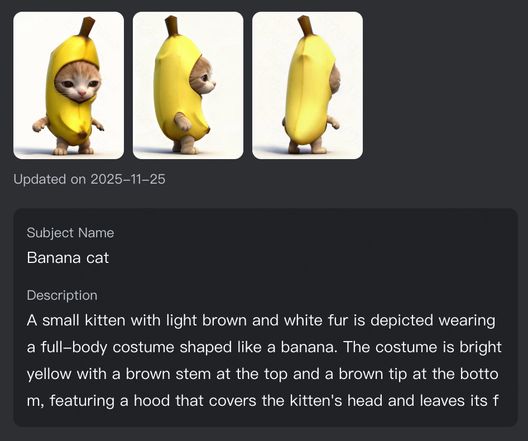
Element 1: Banana Cat
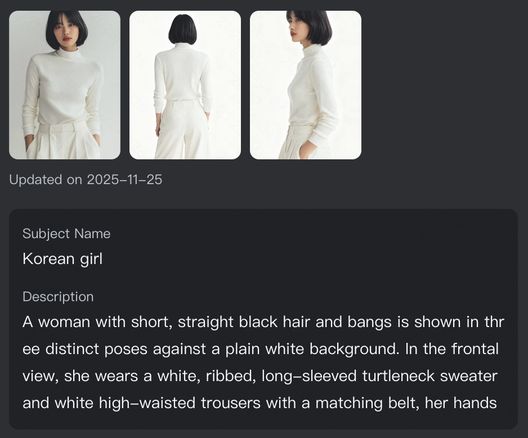
Element 2: Asian Girl
| [Shot 1]
| [Shot 2]
|
 |  |
4. Powerful Combinations: More Creativity Packed in One Generation
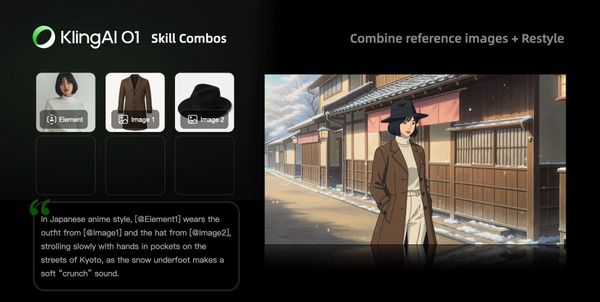
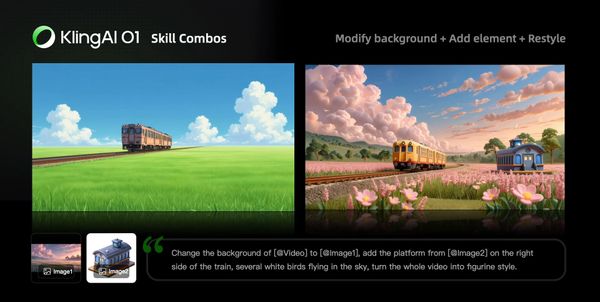
The Kling O1 model is not limited to single tasks; it supports a combination of different tasks in one prompt, such as “adding a subject while modifying the background in the video”, or “changing the style while using elements”. This allows you to incorporate multiple creative ideas at once, exploring infinite creative possibilities.
 |  |
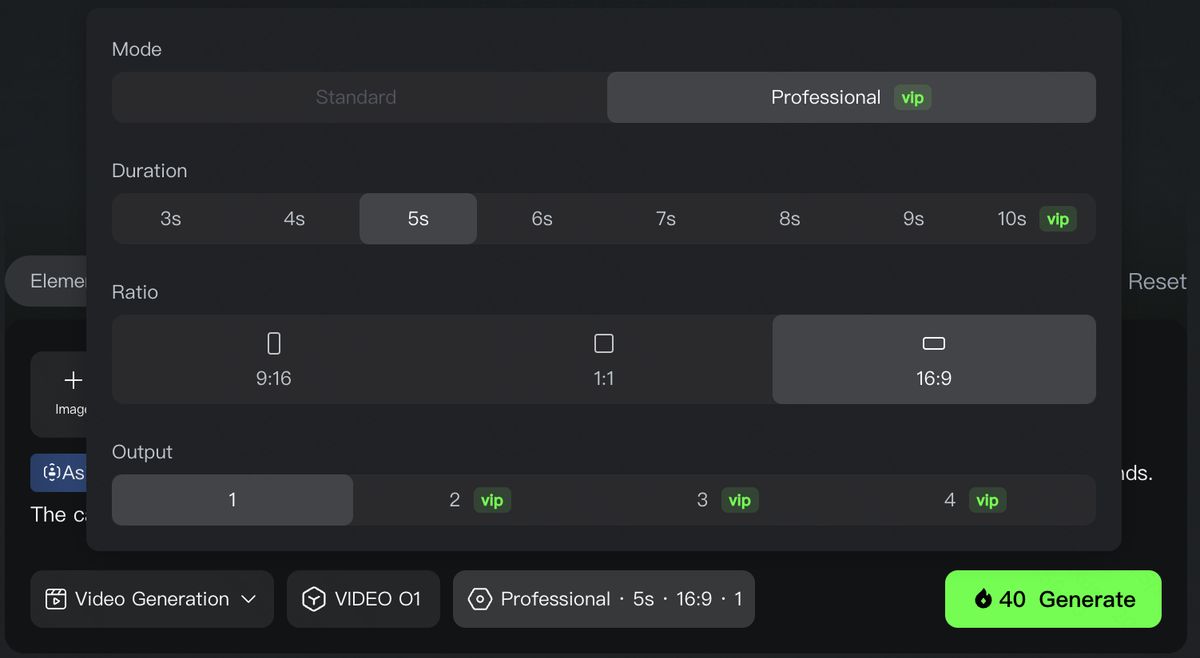
5. Control the Pace: Supports 3-10s for More Narrative Freedom
Every shot needs its own duration for better pacing of the story. Kling O1 supports generations anywhere between 3-10s, giving you more control on how you want your story to unfold. Whether it's a fast-paced, impactful scene, or a story with narrative arc, you get to decide the pacing of the shots.
Use Cases in different scenarios
With a groundbreaking unified multimodal architecture, Kling O1 integrates generation and modification to empower endless creativity. Whether you’re developing a story from scratch, or deeply reshaping existing content, Kling O1 brings versatility to a variety of creative projects from film production to advertising.
Filmmaking
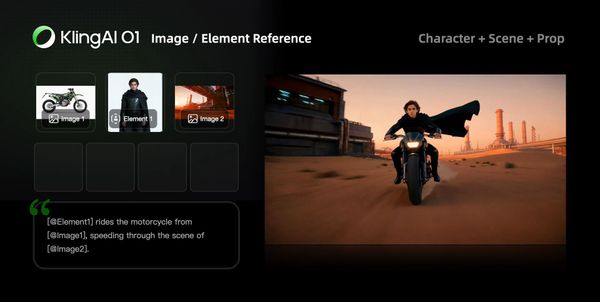
With Kling O1’s exceptional consistency with references, and powerful features like the Element Library, you can lock in characters and props for each project to generate multiple scenes with consistency and continuity.
 |  |
Advertising
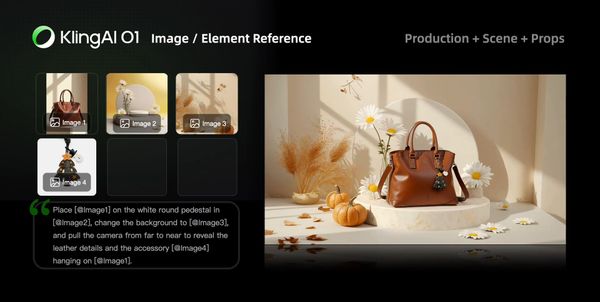
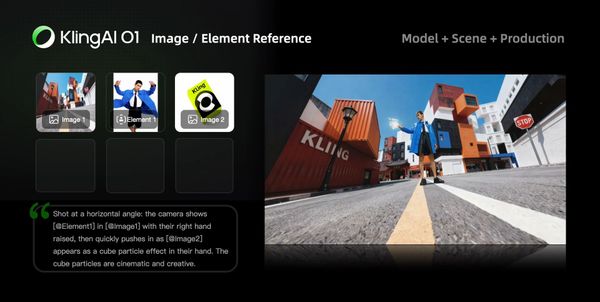
Traditional advertising shoots are costly and time-consuming. In Kling O1, simply upload product, model, and background images along with simple prompts to quickly generate cool shots for product showcases.
 |  |
Fashion
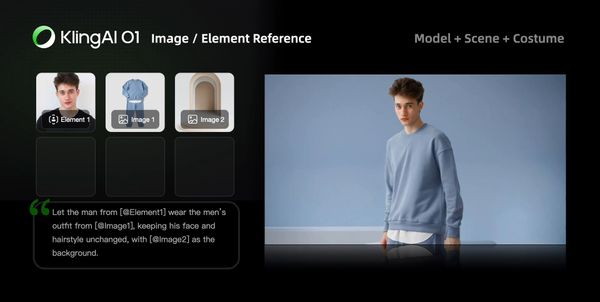
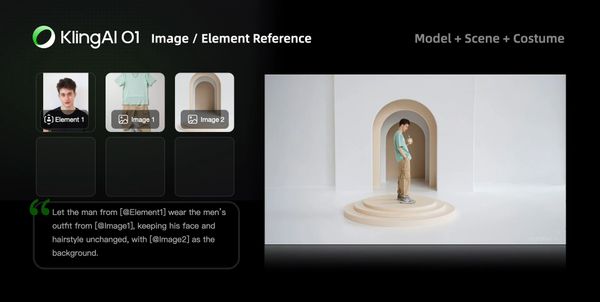
Shooting with models with different looks and sets could be a lot. With Kling O1, you can create a never-ending virtual runway. Upload model photos and clothing images, input prompts, and create lookbook videos with clothing details perfectly retained.
 |  |
Film Post-production
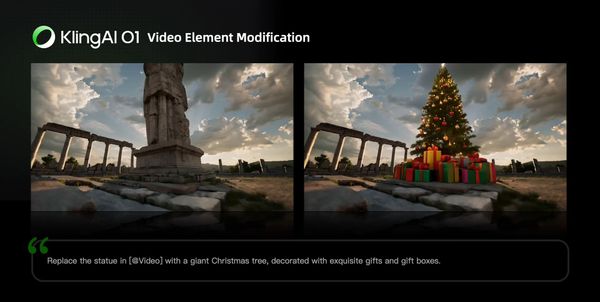
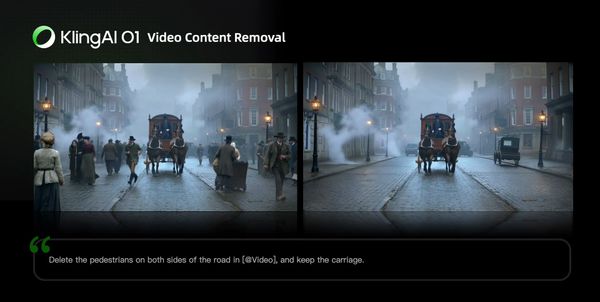
Forget about tracking and masking. In Kling O1, post-production is as simple as having a conversation. Input natural language like “remove the bystanders in the background”, or “make the sky blue”, and the model will use deep semantic understanding to automatically complete pixel-level adjustments.
 |  |
Kling Video O1 Skills
Image/Element Reference
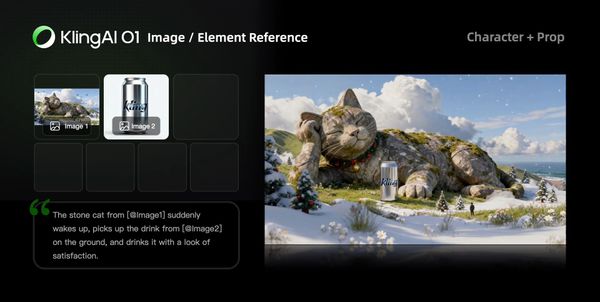
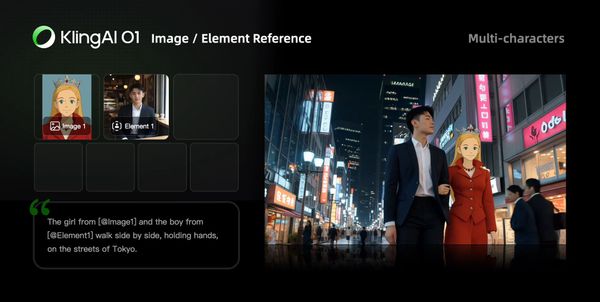
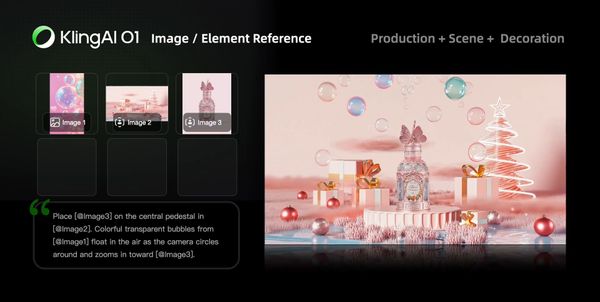
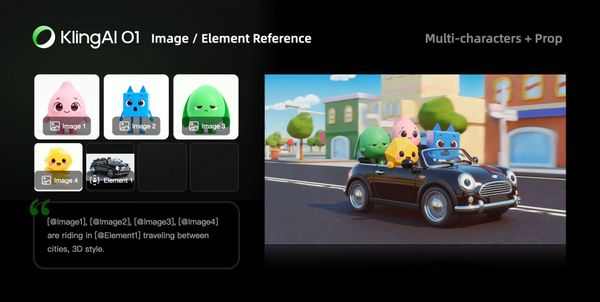
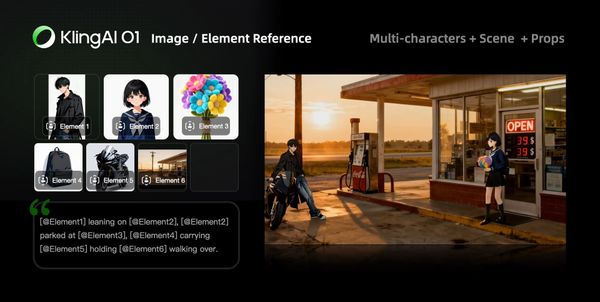
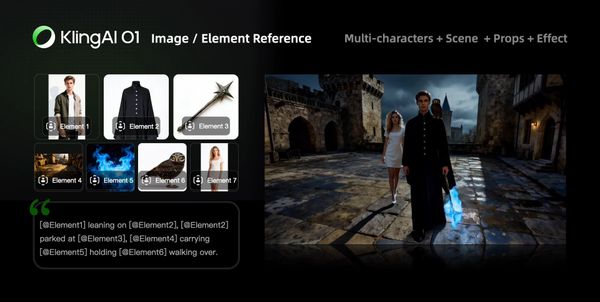
Supports uploading 1–7 reference images or elements in the input area. You can combine characters, items, outfits, scenes, and other elements, and use text prompts to define their interactions, bringing static elements to life.
Prompt Structure: [Detailed description of Elements] + [Interactions/actions between Elements] + [Environment or background] + [Visual directions like lighting, style, etc]
 |  |
 |  |
 |  |
Transformation
In Kling O1, you can freely combine multimodal inputs — texts and images/elements — to easily add, modify, or remove subjects and backgrounds from the original video. You can also change the video’s style, environment, colors, shot composition, angles, and more.
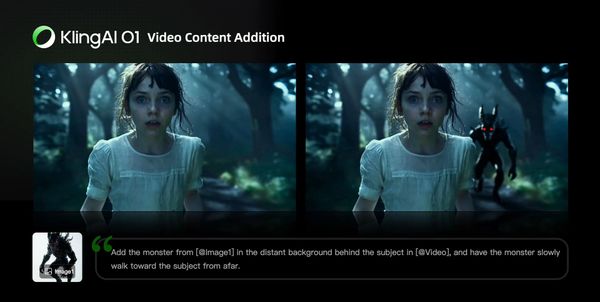
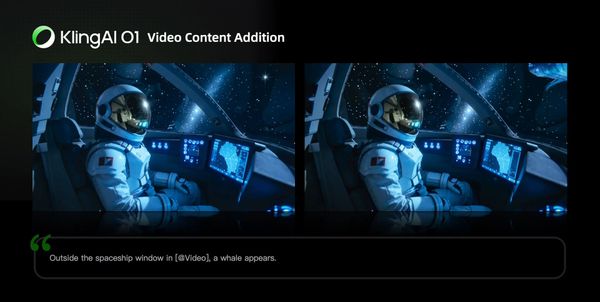
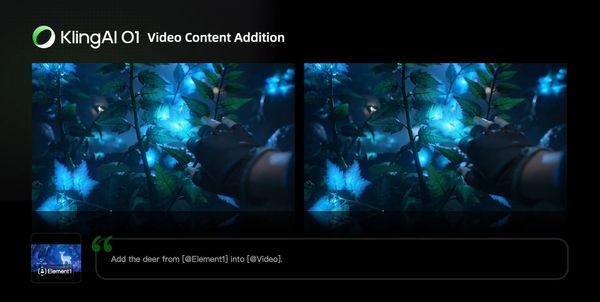
Video Content Addition
| Prompt Structure: Add [describe content to add] from [@Image] to [@Video] | Prompt Structure: Add [describe content to add] to [@Video] |
 |  |
| Prompt Structure: Add [@Element] to [@Video] | Prompt Structure: Add [@Element] and [describe content to add] from [@Image] to [@Video] |
 | 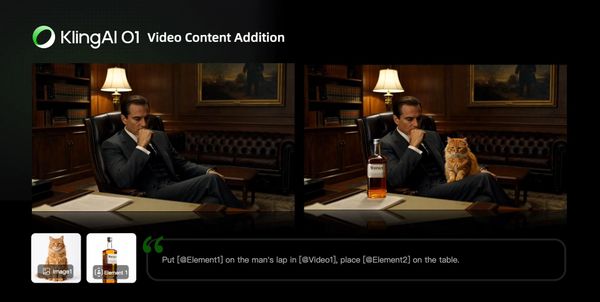 |
Video Content Removal
Prompt Structure: Remove [describe content to remove] from [@Video]
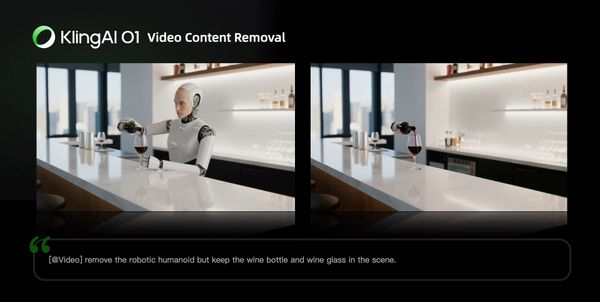 | |
Changing Angle or Composition
Prompt Structure: Generate [another angle/composition, e.g, close-up, wide shot] in [@Video]
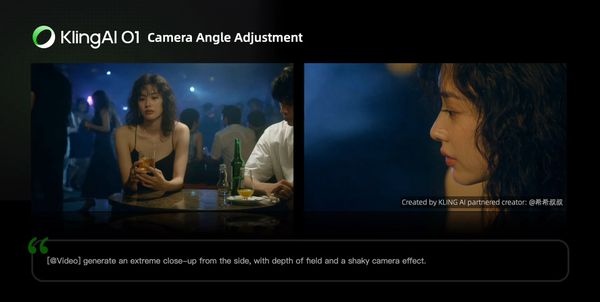 | 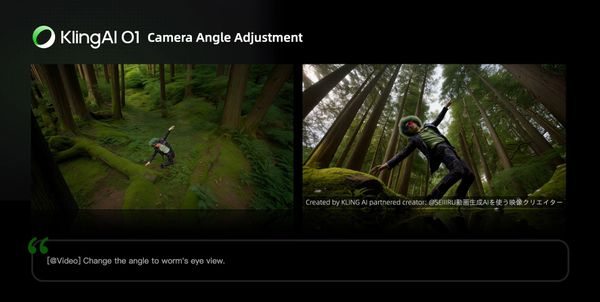 |
Modify Video Content
Modify Subject
| Prompt Structure: Change [describe specified subject] in [@Video] to [describe target subject]. | Prompt Structure: Change [describe specified subject] in [@Video] to [describe target subject] from [@Image] |
| 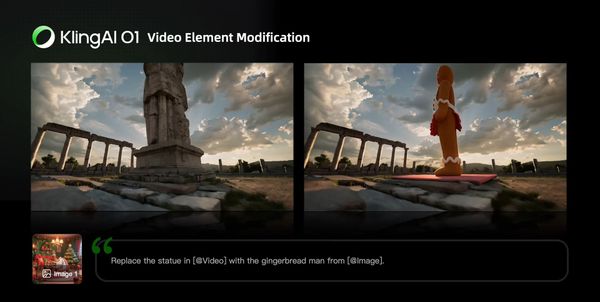 |
| Prompt Structure: Change [describe specified subject] in [@Video] to [@Element] | |
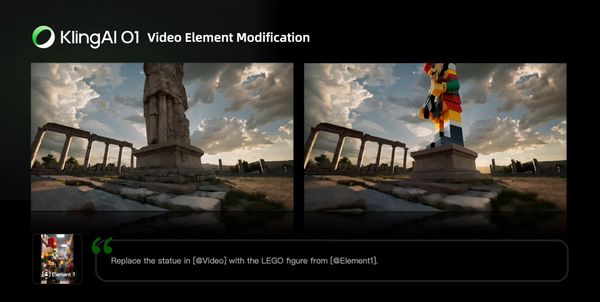 | 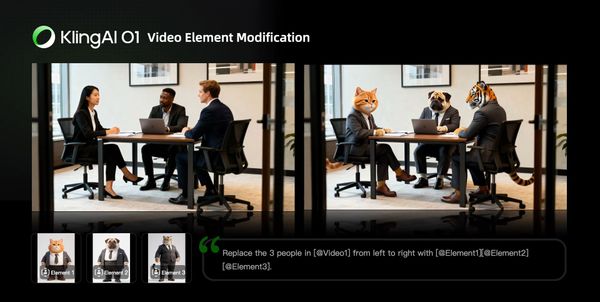 |
Modify Video Background
| Prompt Structure: Change the background in [@Video] with [describe specified background] | Prompt Structure: Change the background in [@Video] with [@Image] |
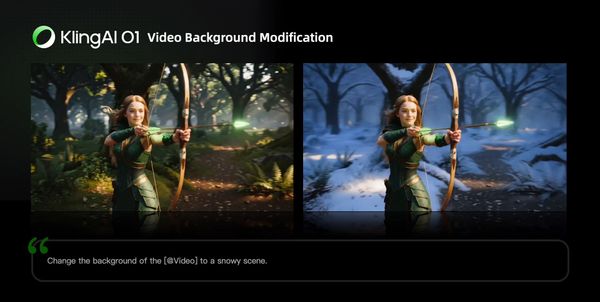 | 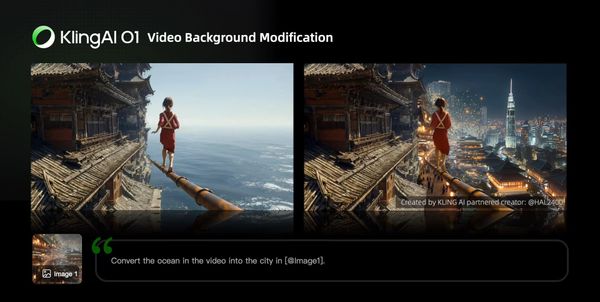 |
Localized Modification
| Prompt Structure: Change [describe specified content] in [@Video] to [describe target content] | Prompt Structure: Change [describe specified content] in [@Video] to [describe target content] from [@Image] |
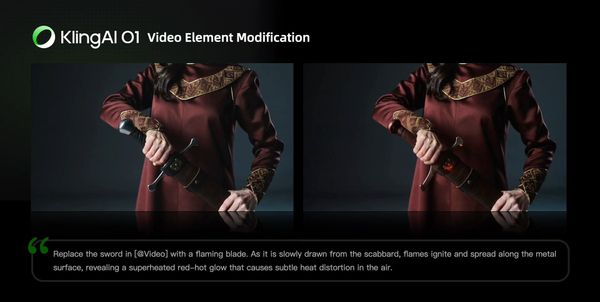 | 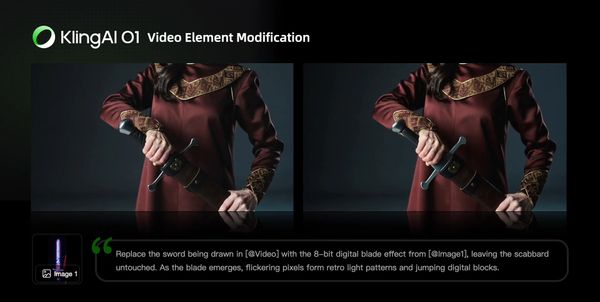 |
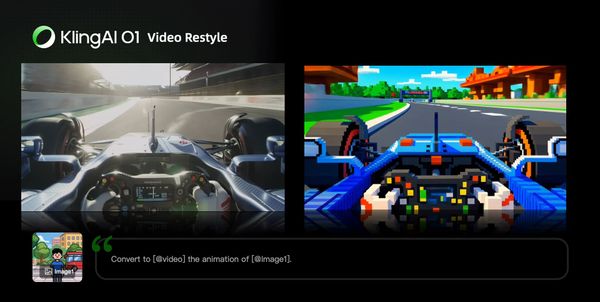
Video Restyle
Prompt Structure: Change [@Video] to [Style words: American cartoon, Japanese anime, wool felt, cyberpunk, pixel art, ink wash painting, oil painting, etc] style
| American Cartoon | Japanese Anime |
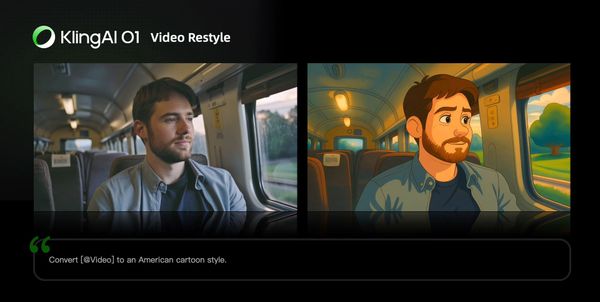 | 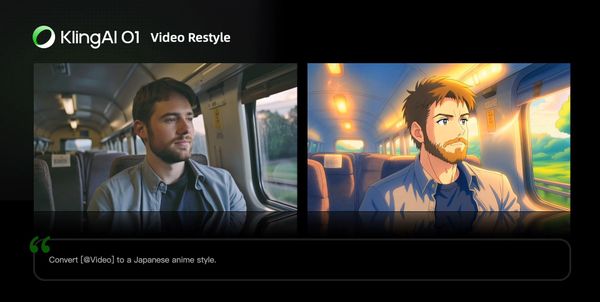 |
| Cyberpunk | Pixel Art |
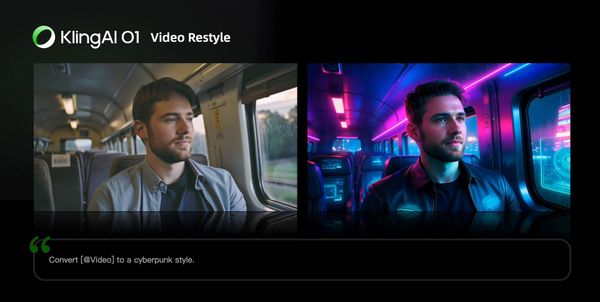 | 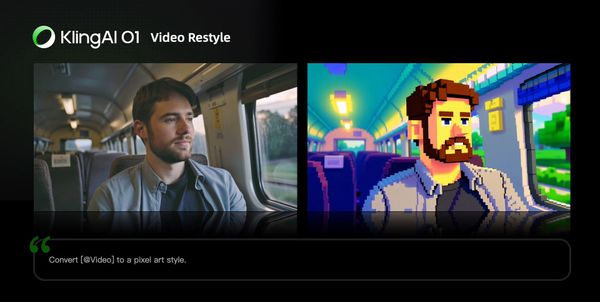 |
| Ink Wash Painting | Watercolor style |
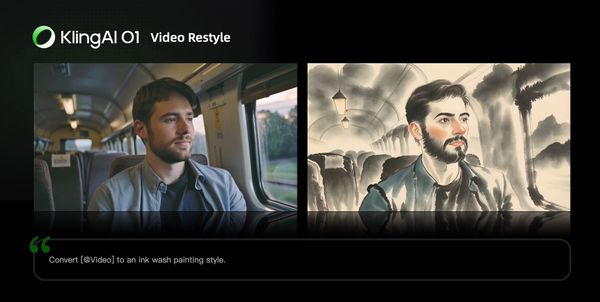 | 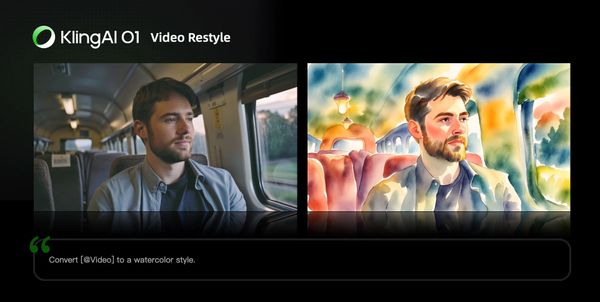 |
| Clay style | Figure style |
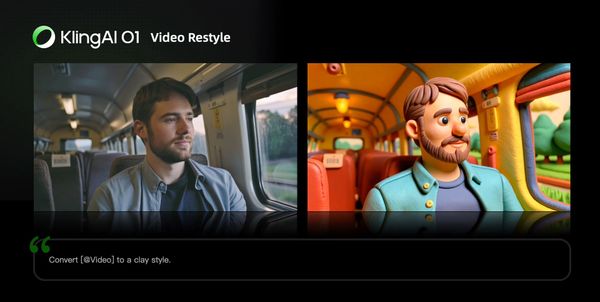 | 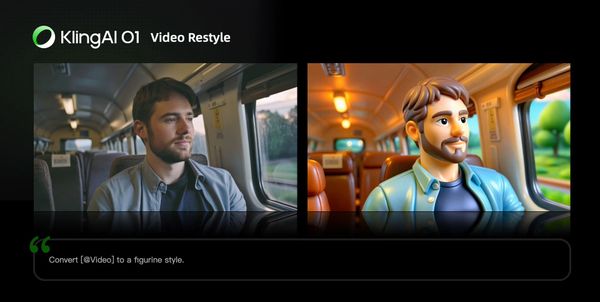 |
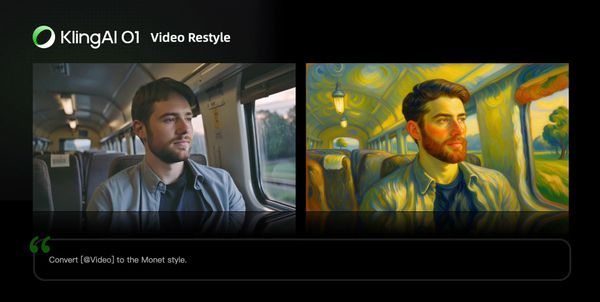 Monet-inspired Style | 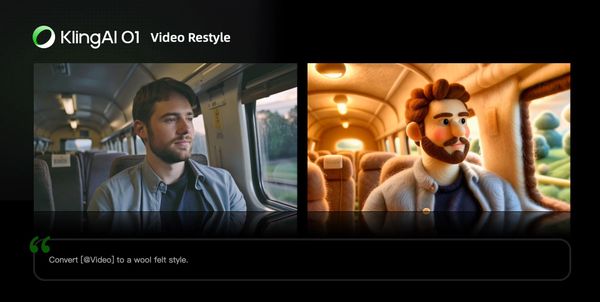 Wool felt Style |
Prompt Structure: Change [@Video] to the style of [@Image1]
 |
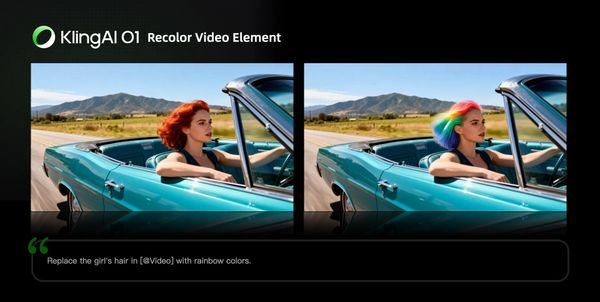
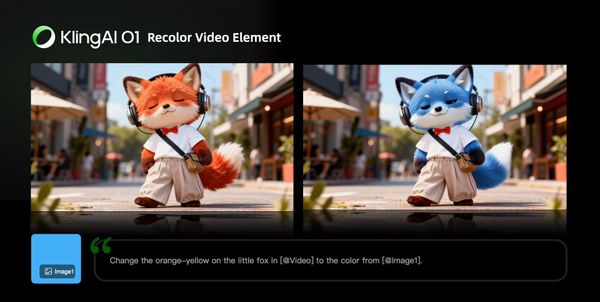
Recolor Video Element
| Prompt Structure: Change the [item] in the [@Video] to [color] | Prompt Structure: Change the [item] in the [@Video] to [color] from [@Image] |
 |  |
Change Weather/Environment
Prompt Structure: Change [@Video] to [describe weather, like “a rainy day”]
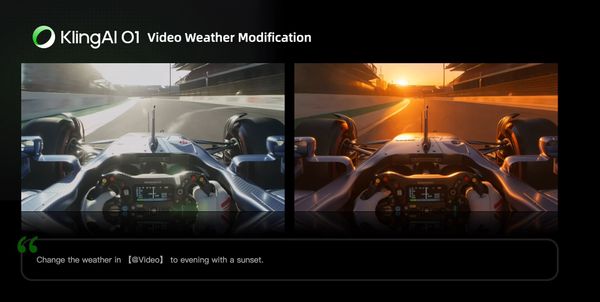 | 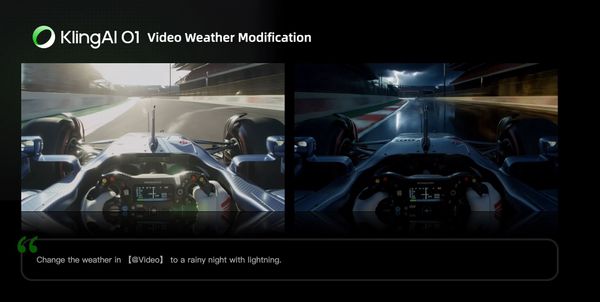 |
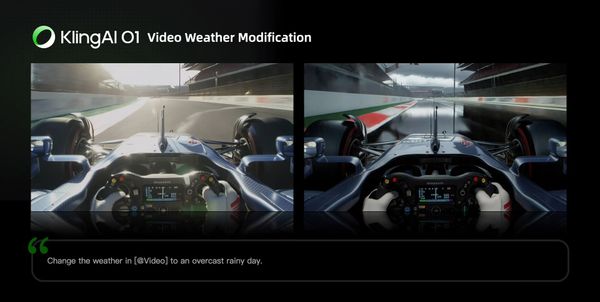 | 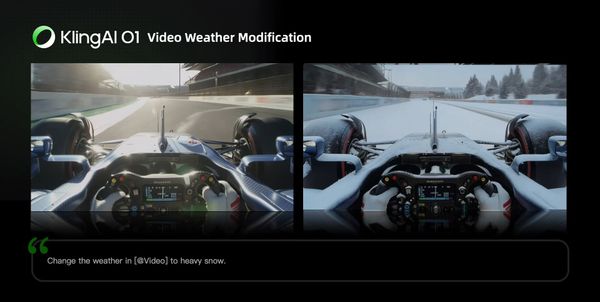 |
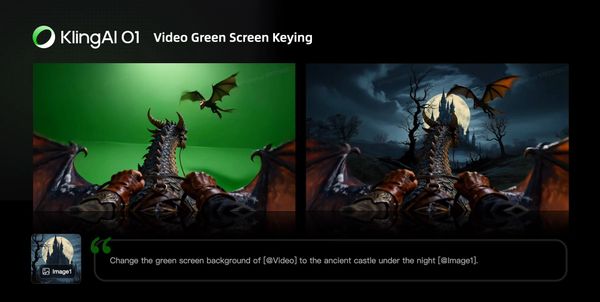
Green Screen Keying in Video
Prompt Structure: Change the background in [@Video] to a green screen, and keep [describe content to keep]
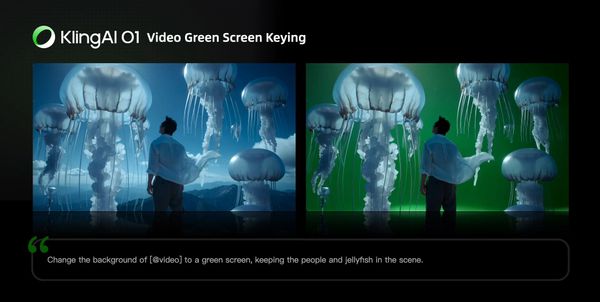 |
Video creative effects
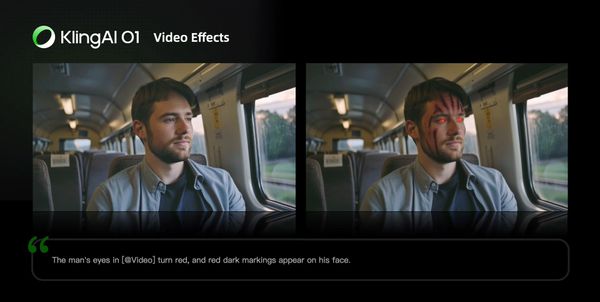
You can directly add flames to elements in the video or freeze the environment in the video via text commands. You can also add facial textures or red-eye effects to characters in the video. Additionally, you can reimagine and redraw the image of the main subject in the video, then replace the original subject to achieve more engaging visual effects.
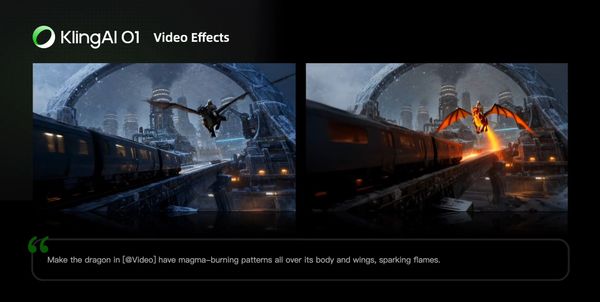 | 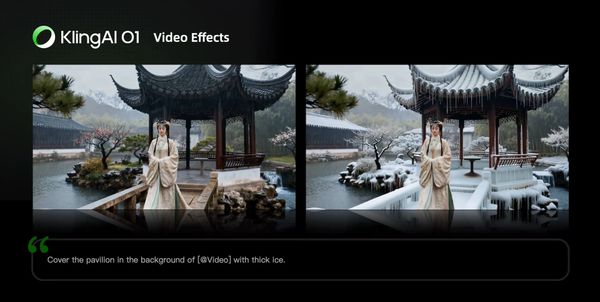 |
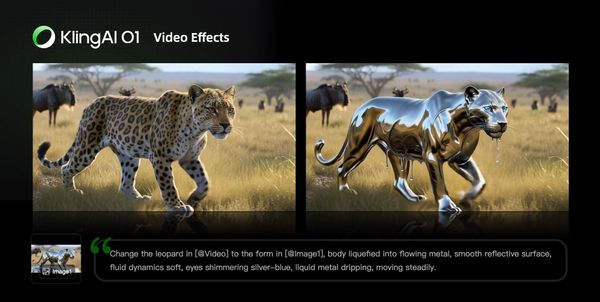 |  |
Video Reference
You can upload a 3-10s video as a reference to generate the previous/next shot within the same context. Or with text, images, or elements, create a completely new scene referencing actions or camera movements in the video.
Generate Next Shot
Prompt Structure: Based on [@Video], generate the next shot: [describe shot content]
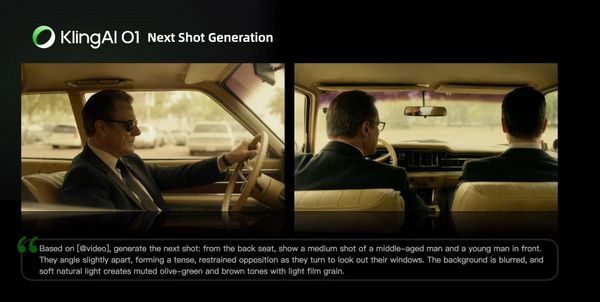 | Based on [@video], generate the next shot: from the back seat, show a medium shot of a middle-aged man and a young man in front. They angle slightly apart, forming a tense, restrained opposition as they turn to look out their windows. The background is blurred, and soft natural light creates muted olive-green and brown tones with light film grain. |
Generate Previous Shot
Prompt Structure: Based on [@Video], generate the previous shot: [describe shot content]
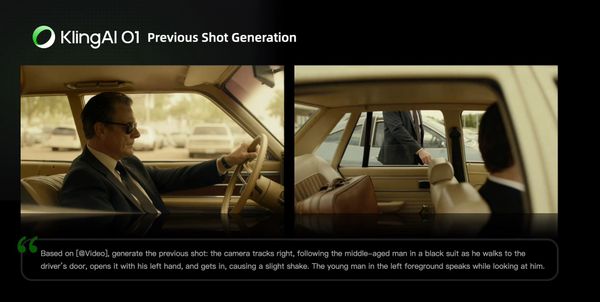 | Based on [@Video], generate the previous shot: the camera tracks right, following the middle-aged man in a black suit as he walks to the driver’s door, opens it with his left hand, and gets in, causing a slight shake. The young man in the left foreground speaks while looking at him. |
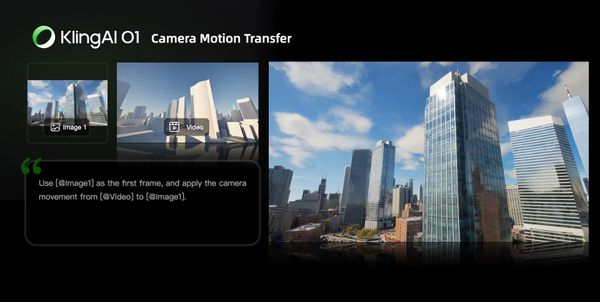
Reference Video for Camera Movements
Prompt Structure: Take [@Image] as the start frame. Generate a new video following the camera movement of the [@video]
 | 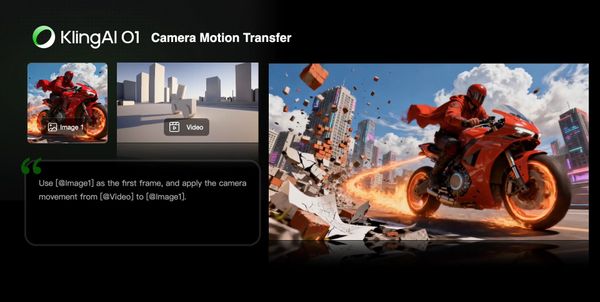 |
Reference Video for Actions
Prompt Structure: Animate the character in [@Image 1] with the same motion as the character in the [@Video]
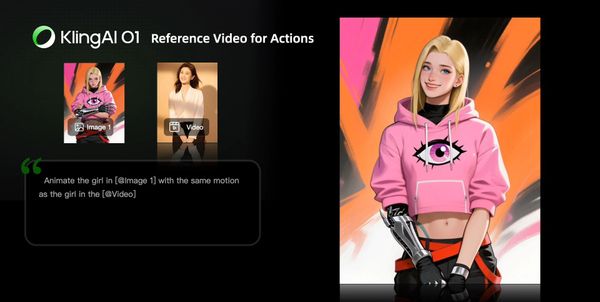 | 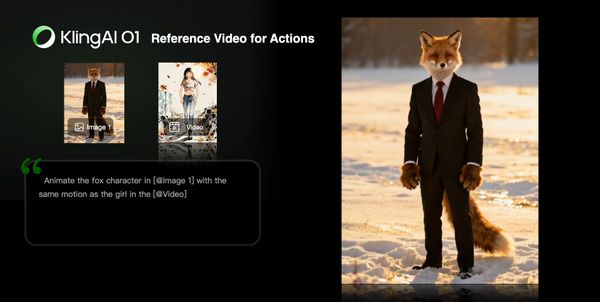 |
Frames
You can specify the start and end frames, and describe scene transitions, camera movement, or character actions to control the entire video from beginning to end.
Prompt Structure:
Take [@Image1] as the start frame, [describe changes in subsequent frames]
or
Take [@Image1] as the start frame, take [@Image2] as the end frame, [describe the changes between start and end frames]
You can also click the “Start & End Frames” icon to open the upload slots for the start & end images, making the workflow clearer.
(Generation with only an end frame is not supported for now.)
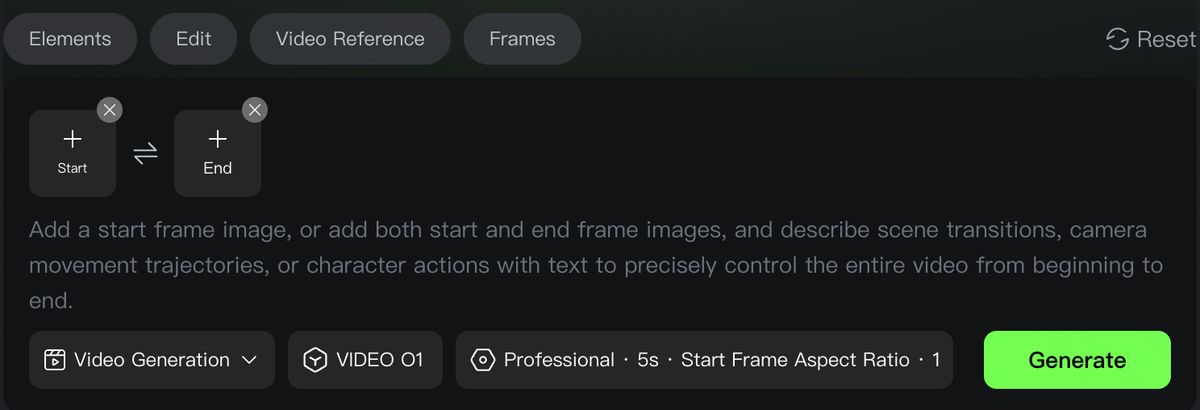
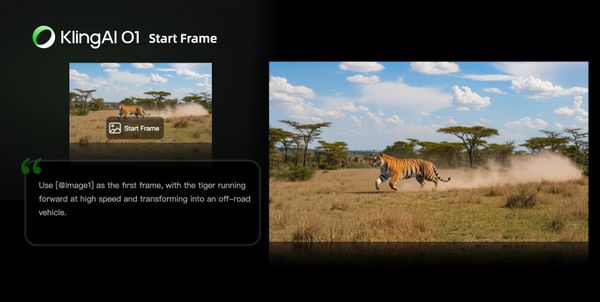 | 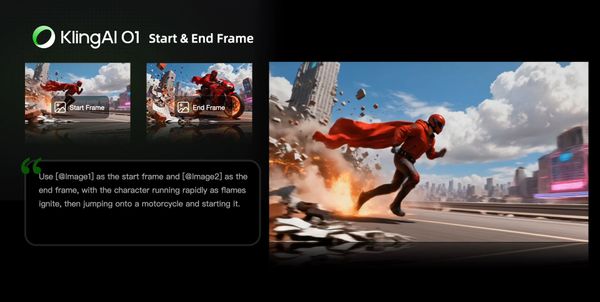 |
Text-to-Video
Text-to-Video generation can be done by entering text in the input area without uploading any material. For text-to-video, the level of details in the prompt determines the richness of content in the generated video.
Prompt Structure: Subject (subject description) + Movement + Scene (scene description) + (Cinematic Language + Lighting + Atmosphere)
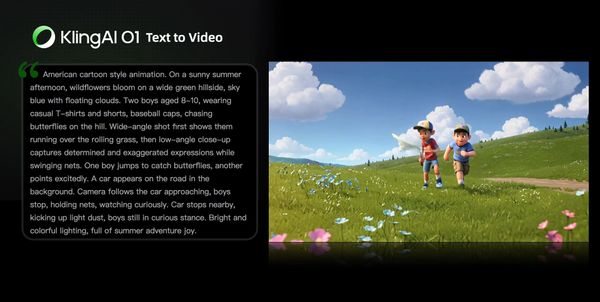
| American cartoon style animation. On a sunny summer afternoon, wildflowers bloom on a wide green hillside, sky blue with floating clouds. Two boys aged 8-10, wearing casual T-shirts and shorts, baseball caps, chasing butterflies on the hill. Wide-angle shot first shows them running over the rolling grass, then low-angle close-up captures determined and exaggerated expressions while swinging nets. One boy jumps to catch butterflies, another points excitedly. A car appears on the road in the background. Camera follows the car approaching, boys stop, holding nets, watching curiously. Car stops nearby, kicking up light dust, boys still in curious stance. Bright and colorful lighting, full of summer adventure joy. |
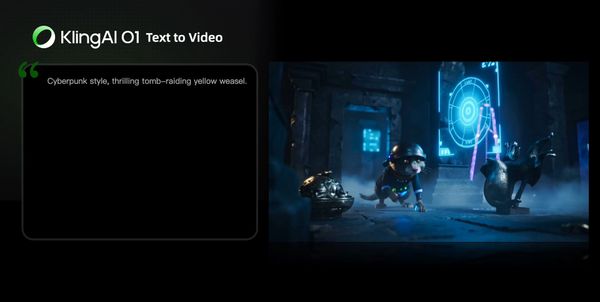 | Cyberpunk style, thrilling tomb-raiding yellow weasel. |
More Skill Combos
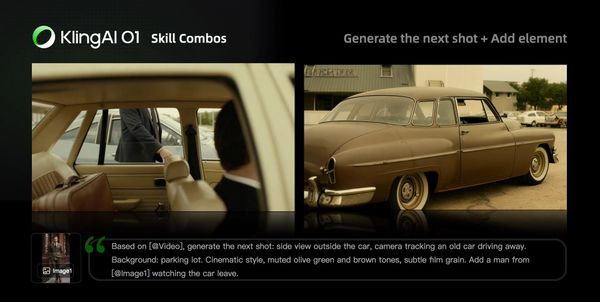
Besides the abilities above, you can also combine different types of inputs and fully unleash your imagination to achieve even more surprising results. For example, 「image/subject reference + style modification」, 「remove subject + add subject」, 「background modification + add subject + style modification」, 「add subject + style modification」, etc.
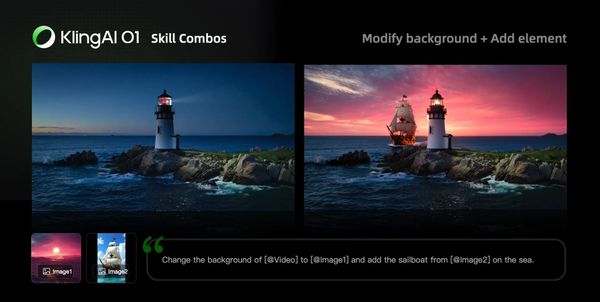 | 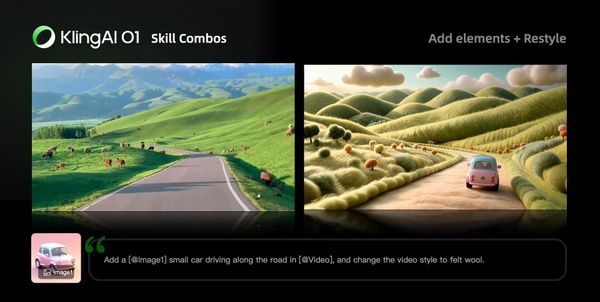 |
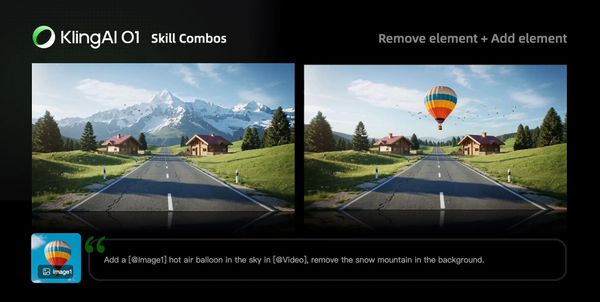 | 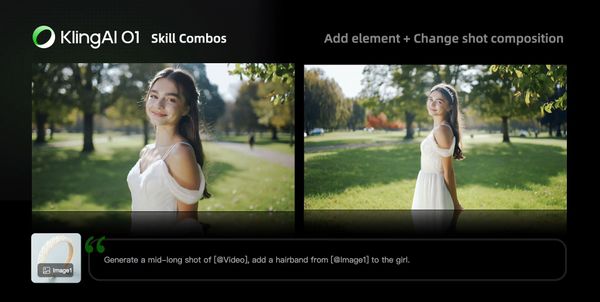 |
 | |
FAQ
Input Media Supported
- Images: You can upload up to 7 images, with minimum resolution 300px, max file size 10MB, in jpg, jpeg or png format.
- Videos: You can upload one video with 3s-10s duration, max file size 200MB, and max resolution 2K.
- Elements: You can upload/generate multiple images from different angles (up to 4 images) to form an element, providing more reference information for the model.
Note: When a video is present, you can upload up to 4 images/elements combined. Without a video, you can upload up to 7 images/elements.
Kling Video O1 Pricing
VIDEO O1 currently supports two modes: 1080p and 720p. Generation pricing depends on your input configuration and the length of the generated video. Whether a reference video is provided will affect the final cost.
1080p Mode |
|
720p Mode |
|