Highlight 1: Video creation and voice binding for character elements
Character Element has received a massive upgrade in the 3.0 Omni! Building on its existing ultra-high visual consistency, characters now possess voice consistency. Not only can you create character elements directly from video, but you can also bind a unique voice to the video or multi-image character elements, ensuring the character always maintains the same face and voice across different works. This enables truly reusable and sustainable character assets.
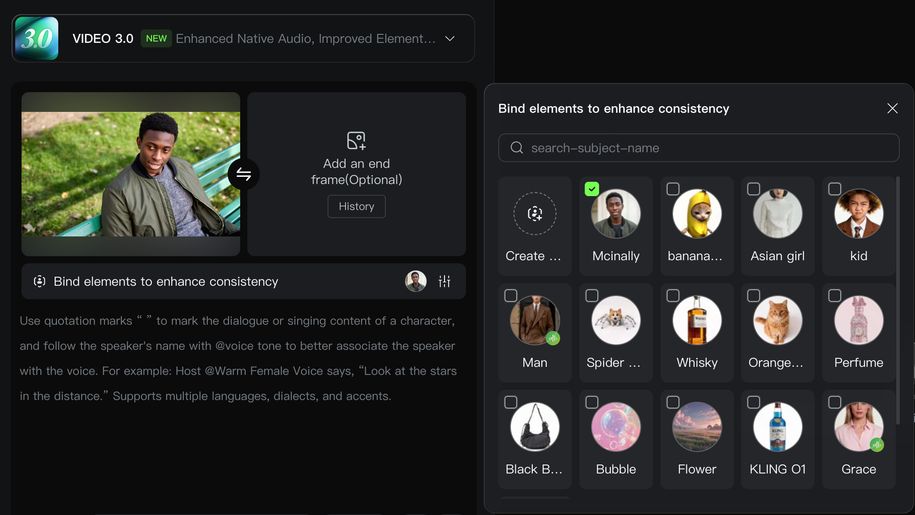
Highlight 2: Binding elements in image-to-video to enhance consistency
The Kling 3.0 model supports binding up to 3 elements in start frame/start and end frames generation. By locking the core features of key elements, it effectively solves the pain point of subjects losing their shape when the perspective or shot changes. This keeps characters and core elements more consistent.
Highlight 3: More references, free combination
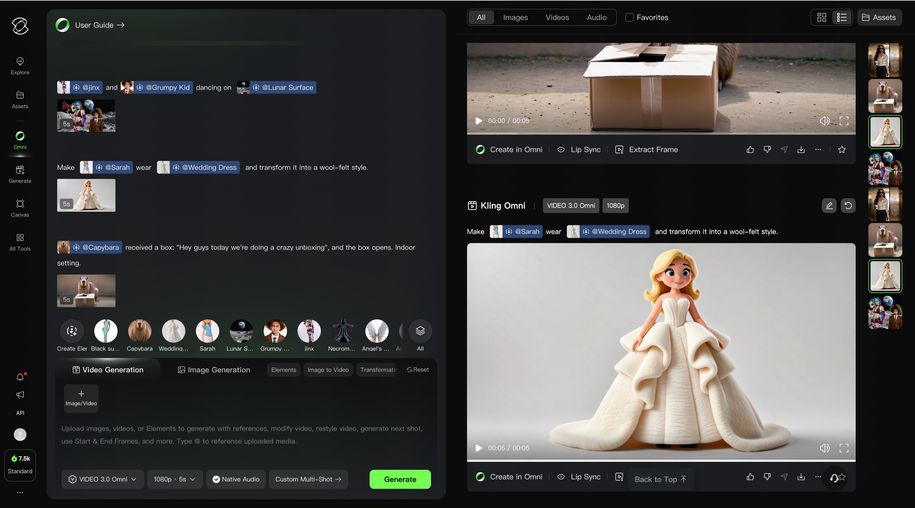
Video generation supports up to 7 reference characters, while image generation supports up to 10. With the Element Library, you become the ultimate director—easily enable character interactions, costume changes, scene transitions, and special effects. Mix and match multiple assets to spark your creativity effortlessly.
Highlight 4: One-click reuse, for both images and videos
Kling VIDEO 3.0, VIDEO 3.0 Omni, Kling O1 Video and Image models support generation using elements from the library to enhance start-frame consistency. Whether creating a single frame or a continuous sequence, your characters’ appearance and style remain consistent throughout.
Highlight 5: AI-assisted expansion and description for easy element creation
Worried about the hassle of creating elements? AI has you covered! The Element Library integrates the latest Kling O1 Image model, which can automatically generate additional views from a single main reference image. It also supports AI-generated element descriptions to extract key features. Just upload one main reference image and provide a name to quickly create your element.
Kling Element Library
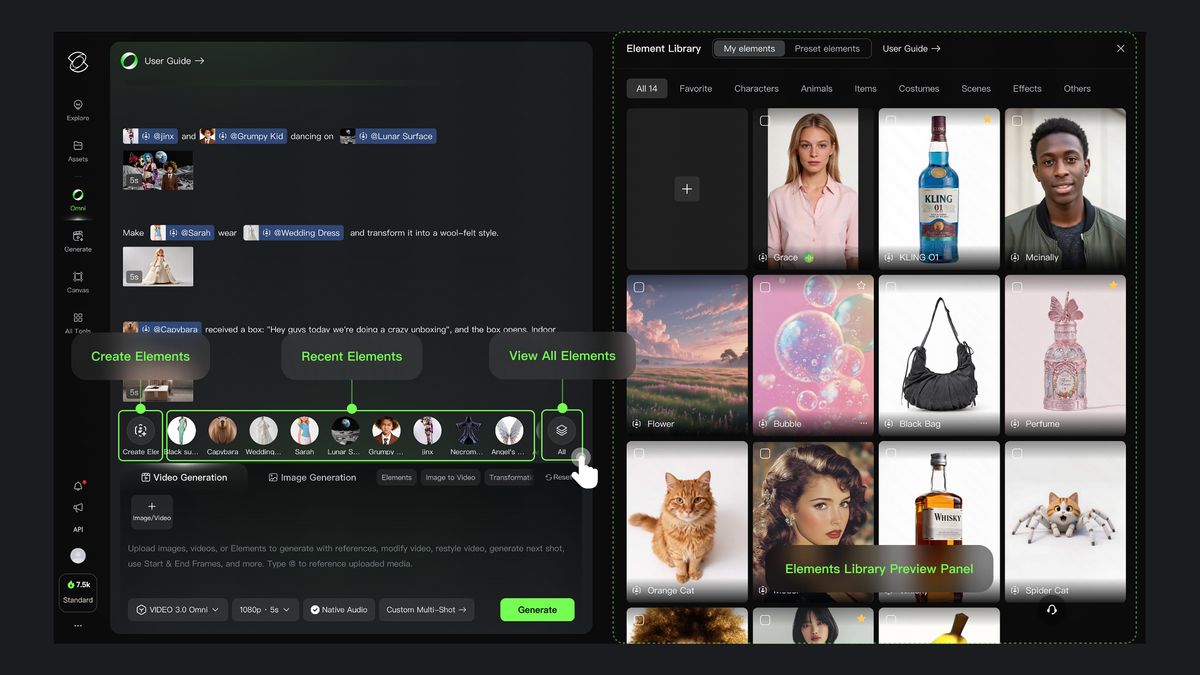
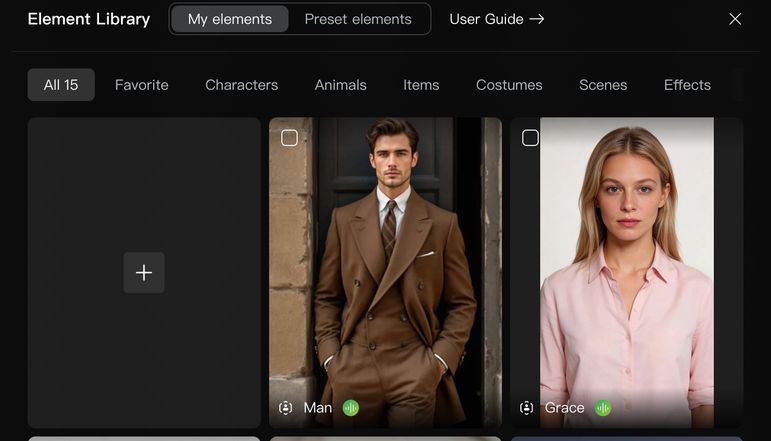
Kling’s Element feature enhances the model’s understanding of input images and videos at a fundamental level. It allows you to create elements from multiple reference angles, providing the model with richer information through reference images or elements. This significantly improves the consistency and stability of generated content. Kling can remember your characters, props, and scenes like a human director, ensuring that element features remain stable and consistent across all shots, so every frame is accurate and coherent. You can also freely combine multiple different elements or mix elements with reference images. In complex multi-character scenes or interactive scenarios, the model can lock and maintain each character or prop's features. No matter how the scene changes, the Kling Element Library ensures that every "main character" maintains industry-level consistency across different shots.
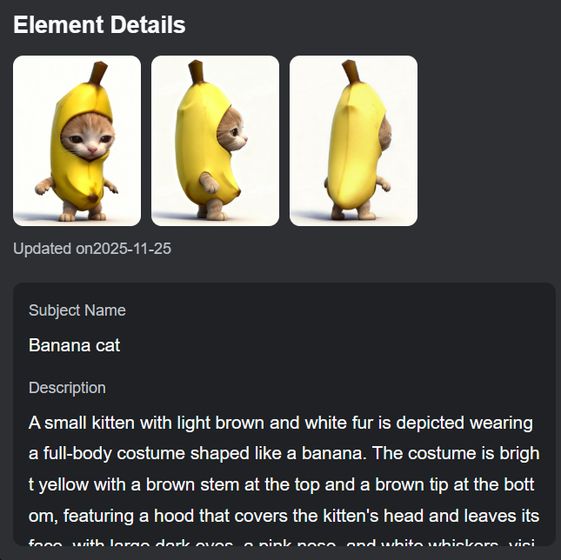
Element 1: Banana Cat
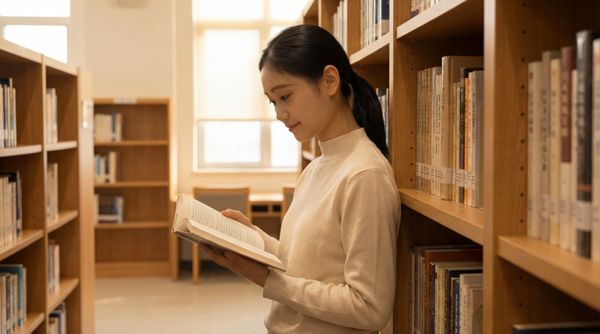
Element 2: Asian Girl
| [Shot 1]   The camera follows as [@Banana Cat] strolls through the streets of Tokyo, encounters [@Korean Girl], and leaps into her arms. | [Shot 2]  [@Korean Girl] sits on the sofa from [@Image1] reading a book. [@Banana Cat] plays with the book in her hands on the sofa. The camera pushes in, revealing their quiet and harmonious moment. |
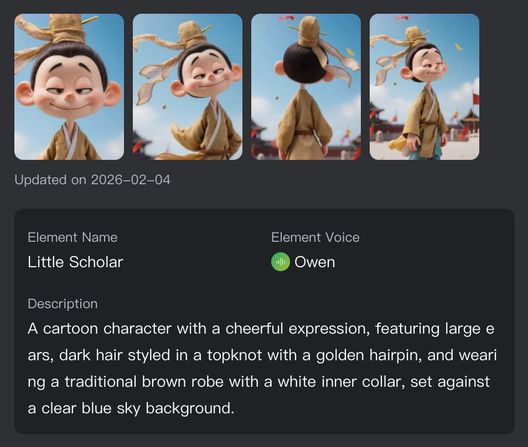
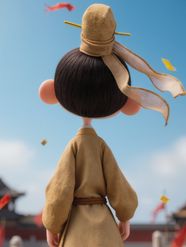
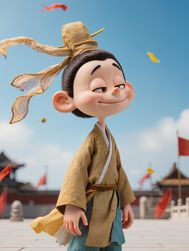
Element 3: Little Scholar
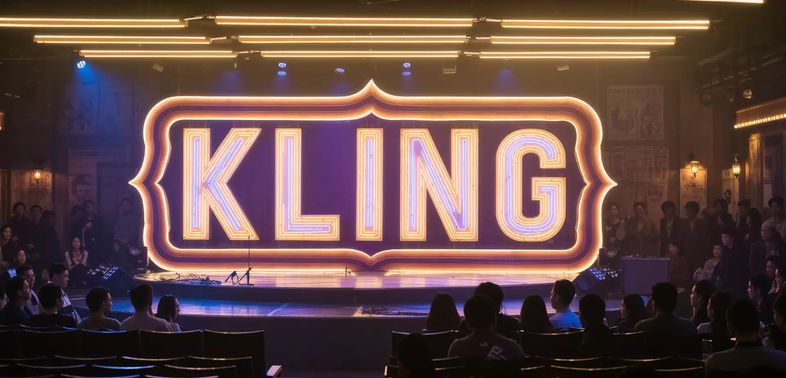
| 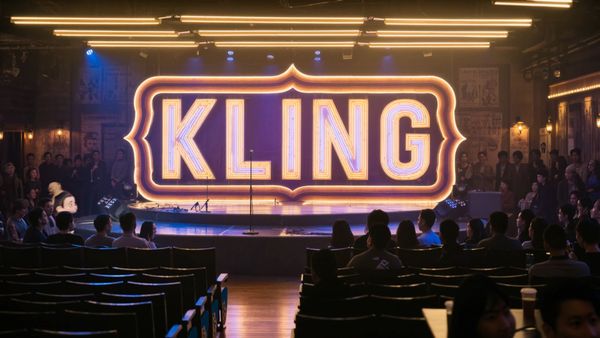 Shot 1 (3s): Close-up on the comedy open-mic stage, with a large retro neon "KLING" sign in the background. Warm golden backlight outlines the scene. The camera follows the performer as they walk to the microphone, lightly adjusting its height. Shot 2 (4s): Mid-close shot of [@Little Scholar], who says, "Forget the crazy diets. I’m on a strict seafood diet." Shot 3 (4s): [@Little Scholar] with a restrained, slight smile, naturally pausing, saying, "It’s very intuitive: I see food... and I eat it." Shot 4 (2s): Switch to the audience laughing loudly.
| 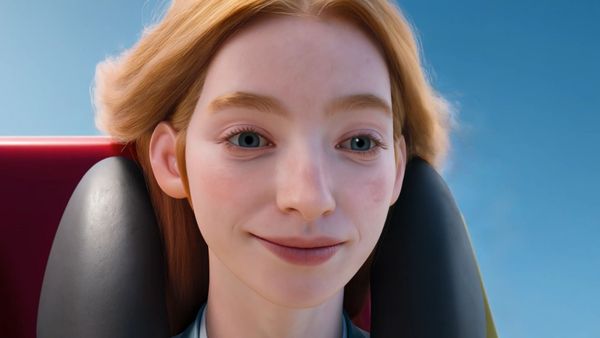 [@Little Scholar] and a blonde girl are on a roller coaster. The shot begins with a close-up of the girl’s mysterious smile, then zooms out to capture them together on the ride. The coaster plunges down a steep slope at high speed, jolting violently as the wind howls past their faces. [@Little Scholar] grips the handrail tightly, first gasping in shock, then screaming, "救命啊,快停下" while the girl calmly looks at [@Little Scholar]. |
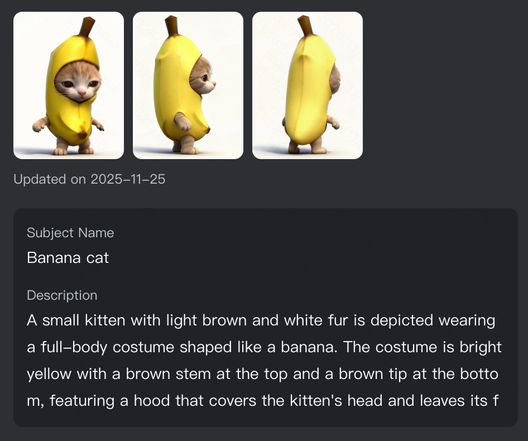
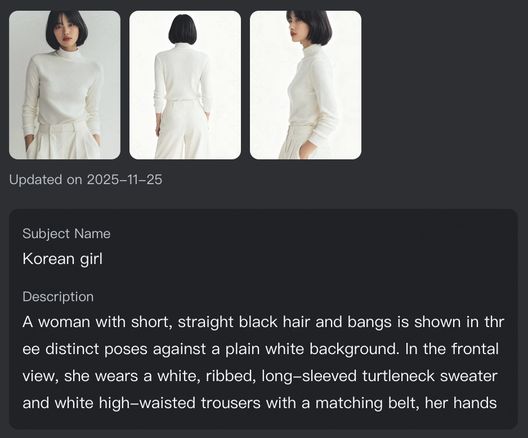
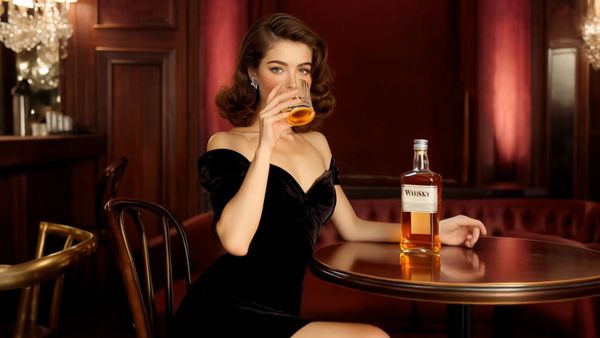
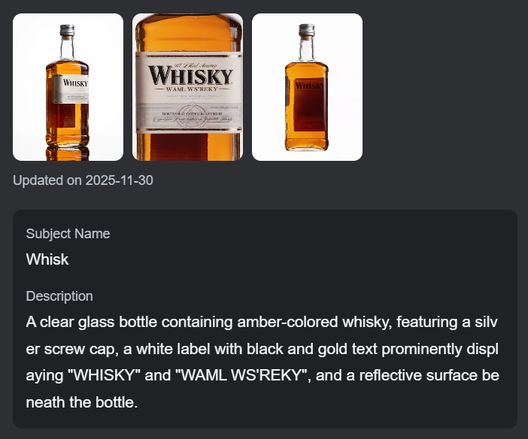
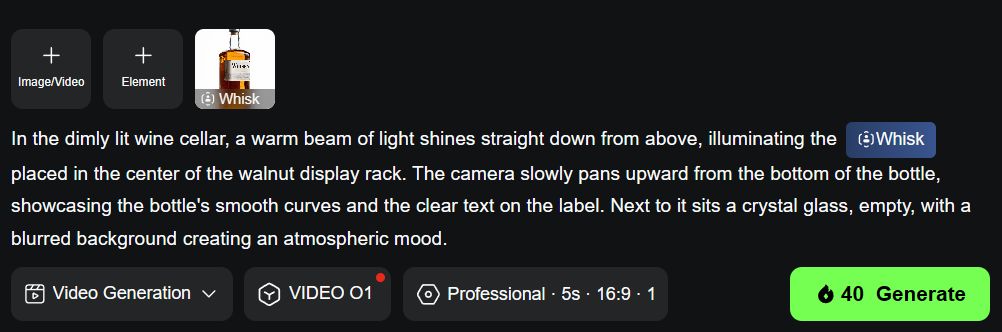
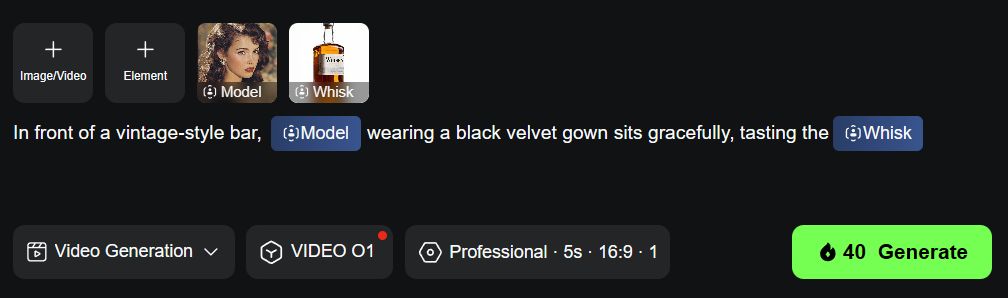
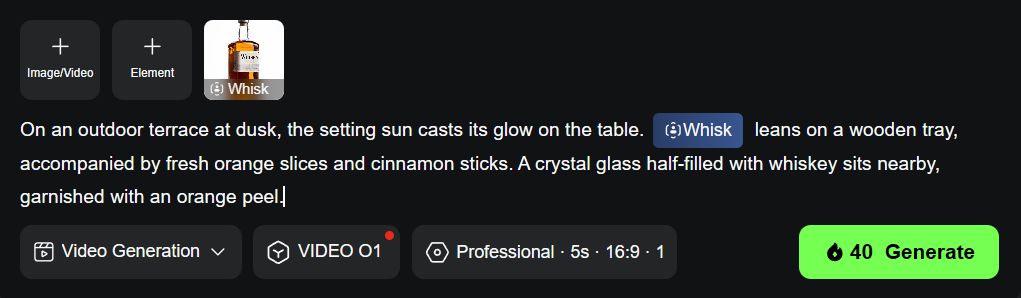
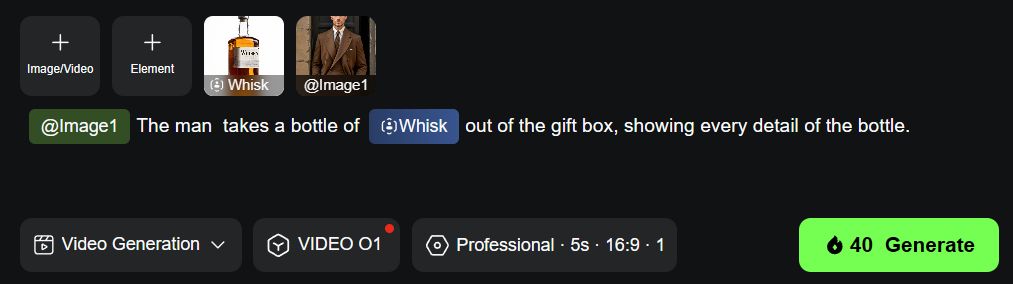
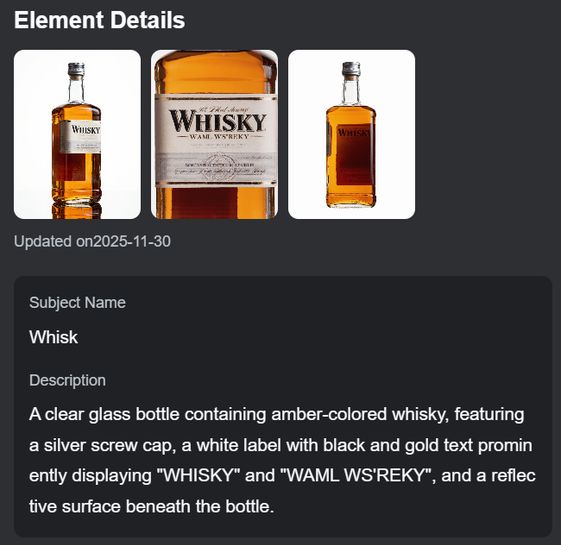
The Element Library isn’t limited to human characters—you can also use it in commercial scenarios to easily combine products, models, and scenes. The same product can maintain a consistent appearance across different styles, backgrounds, and lighting conditions. Whether it’s a still-life close-up, a model showcase, an atmospheric cinematic shot, or a creative advertisement, everything can be effortlessly achieved.
Element
| [Shot 1]
| [Shot 2]
|
 |  | |
[Shot 3]
| [Shot 4]
| |
 |  |
Kling Element Library User Guide
Video Character Elements
3.0 Omni supports recording or uploading a character video. The model automatically extracts the character's appearance and native voice to generate a reusable video element asset. It also supports keeping the original voice or replacing it with a custom voice, allowing for flexible definition of the character's vocal style.
Type | Examples | ||
Characters | 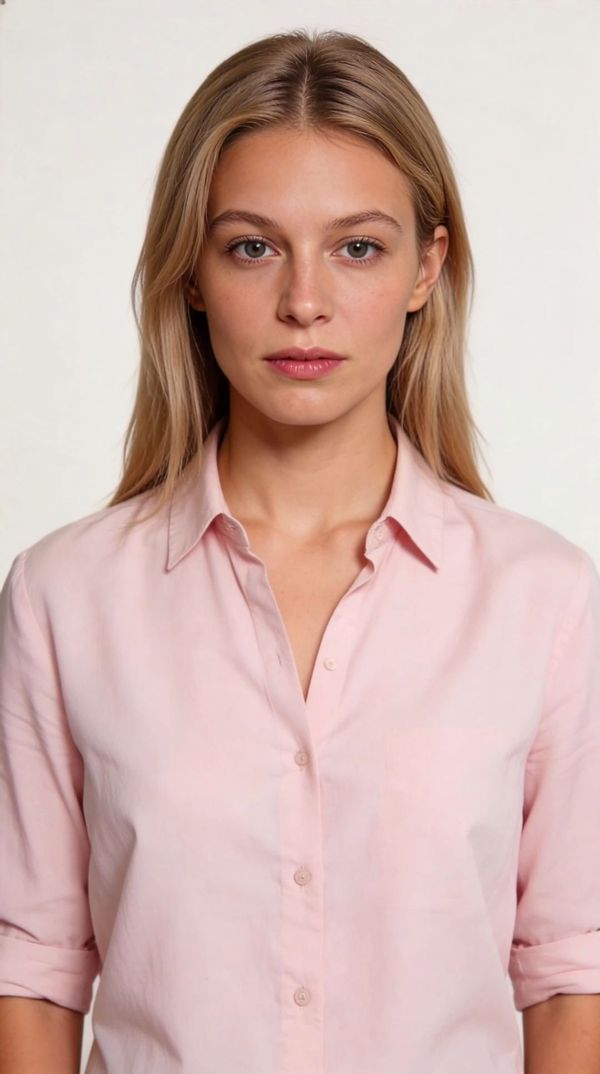 | 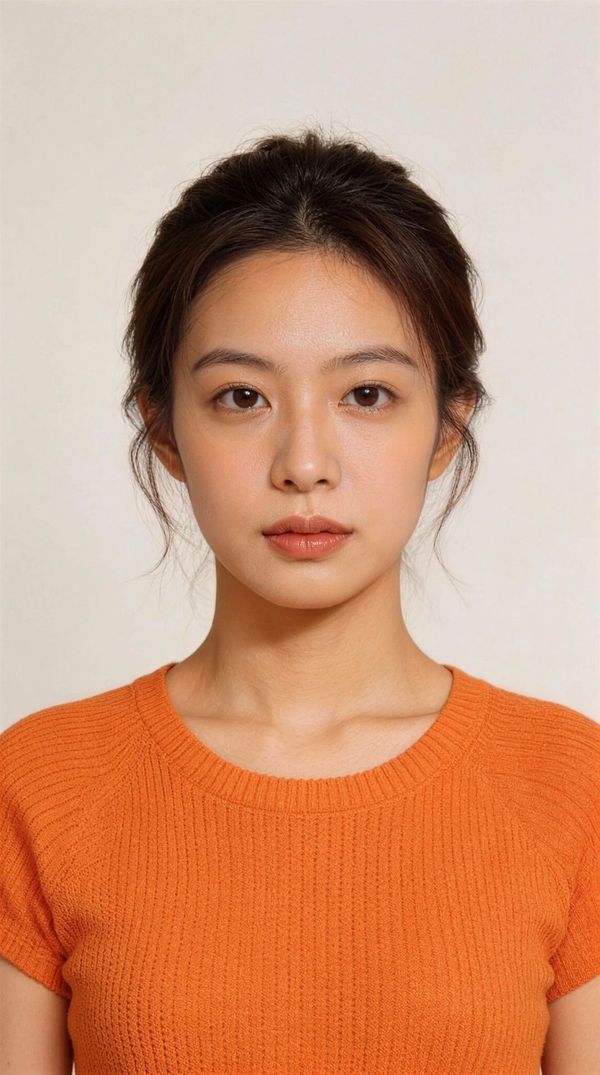 |  |
Multi-Image Elements
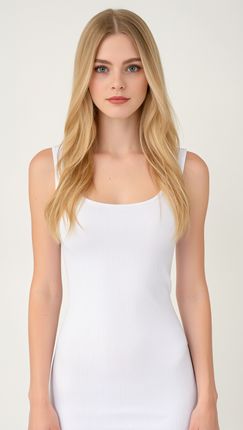
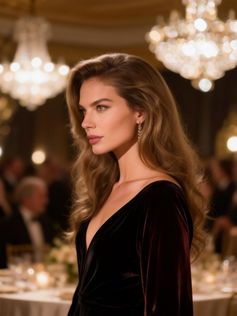
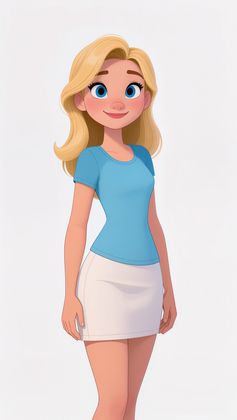
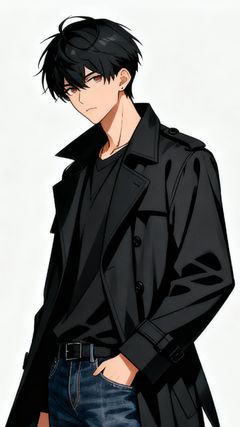
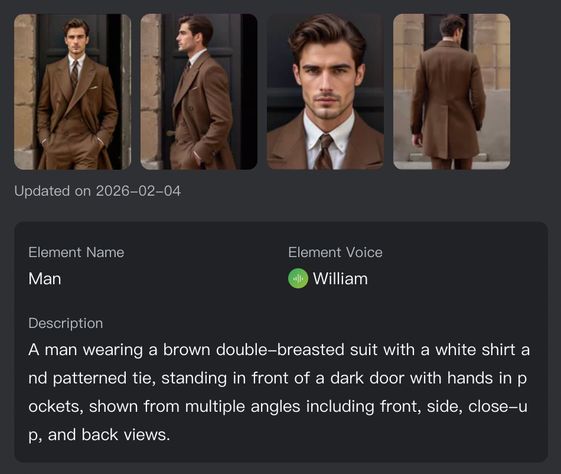
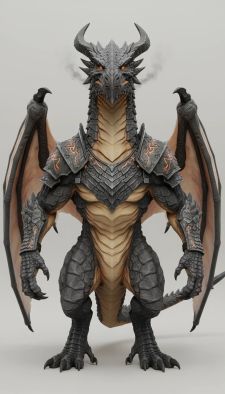
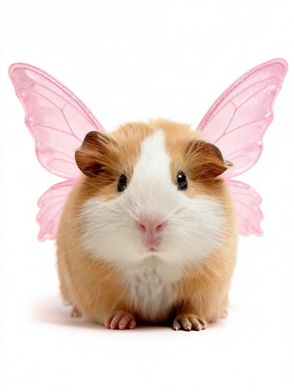
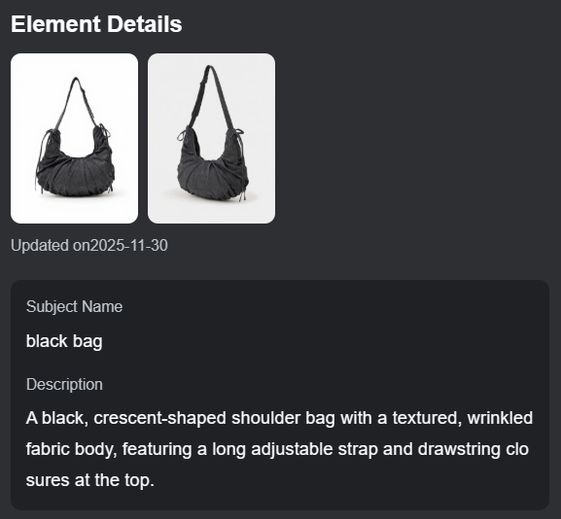
An Element is a composite asset. You can create multi-image elements. Each element must contain at least 2 reference images (1 main reference image + 1 additional reference image) and can include up to 4 reference images (1 main reference image + 3 supplementary reference images). In 3.0 Omni, character elements also support binding voice tones. You can upload audio or specify a voice to define your character's unique sound, ensuring the voice follows the character consistently. Elements are not limited to traditional characters—they also encompass a variety of creative asset types:
Element Type | Description | Examples |
Characters | Modern realistic characters, historical/fantasy characters, anime-style characters, CG-rendered characters, etc.
|
|
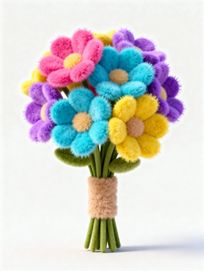
Animals | Realistic animals, anime-style animals, CG-rendered animals, etc.
|
|
Props | Everyday props, rideable props, game-related props, etc.
|
|
Costumes & Accessories | Clothing, style outfits, accessories etc.
|
|
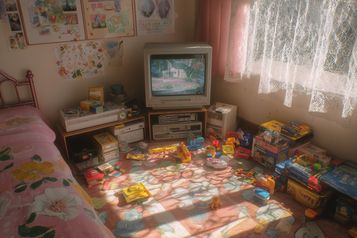
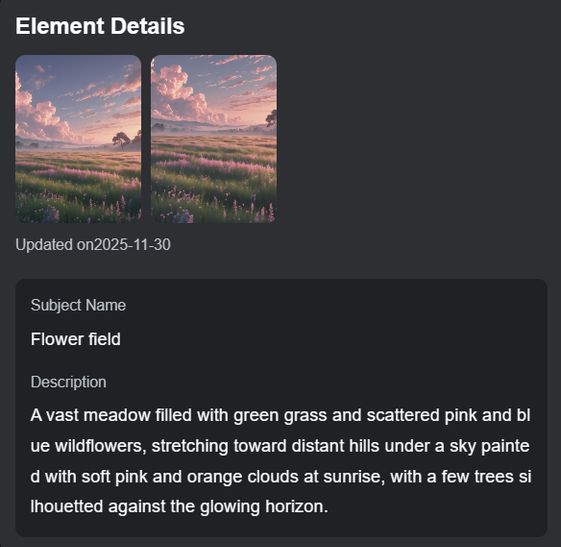
Scenes | Indoor scenes, outdoor scenes, virtual environments, realistic settings, etc.
|
|
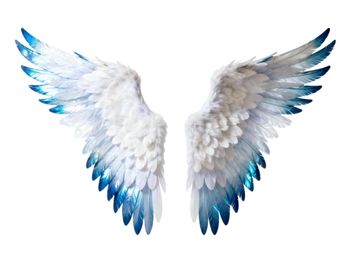
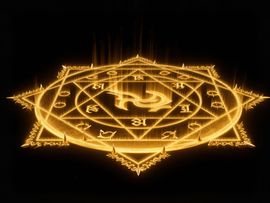
Special Effects | Atmospheric effects, particles, magic effects, etc.
|
|
Others | More to explore… | …… |




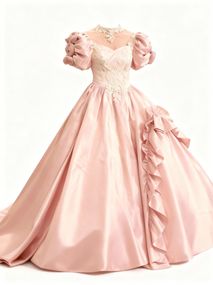
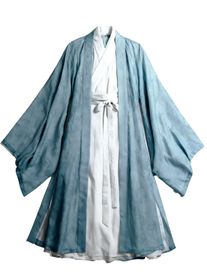
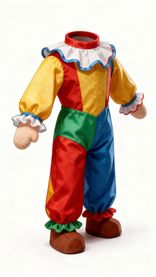
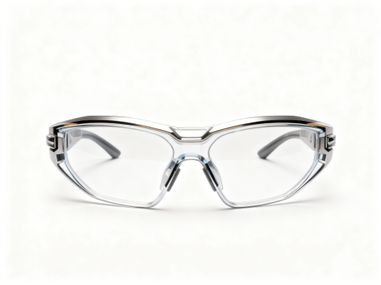



How to Build Your Own Elements
Creation Entry & Usage | ||
Omni | VIDEO 3.0 | Assets |
|
|
|
You can use the Element Library within the Kling Omni creation tool and click “Create Element” in the input box to create. | In Video 3.0, you can click "Bind elements to enhance consistency " and then create element. | You can go to the Assets page and click “Elements” to find the element creation entry. |
|
|
|
In Omni, type "@" to quickly call up added elements without re-uploading or manual selection. You can also click "Add from Element Library" to browse. | In Video 3.0, you can enhance start-frame consistency by binding reference elements. It is recommended to bind elements that appear in the start frame. | On the Asset Page, click "Use Element" to jump to the Omni tool and start your creation. |
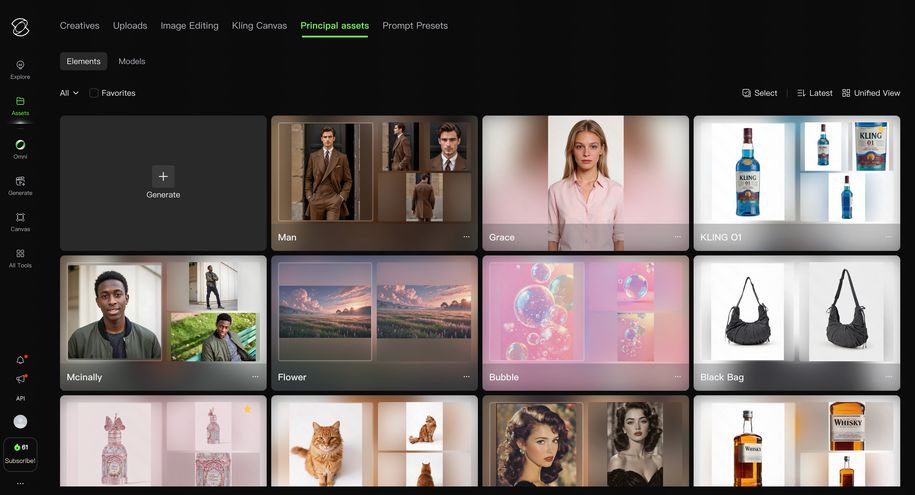
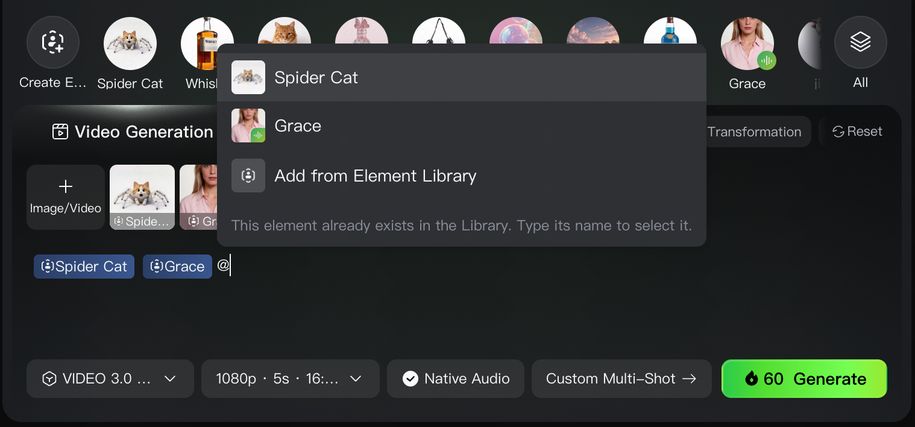
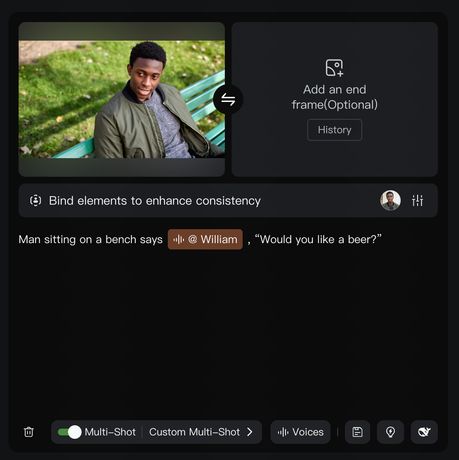
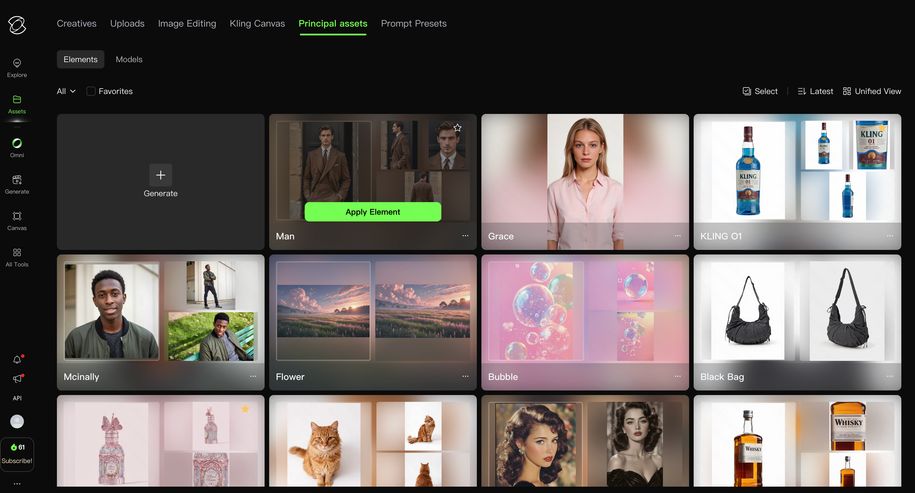
Create Multi-Image Elements
Step | Interface | Description |
Upload the Main Reference Image |
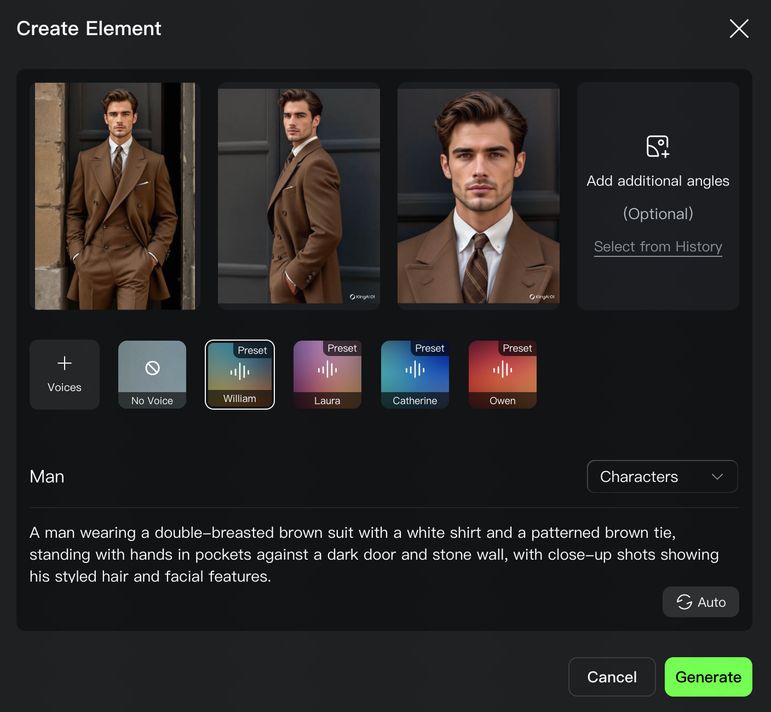
| Click "Add Images" to create multi-image elements. Upload an image from your device, or click “Select from History” to use an image from your creation history. We recommend uploading a front-facing image for higher consistency. The main reference image serves as the primary source for the element.
|
Verify the Subject Type |
| After uploading the main reference image, the system will automatically detect the subject type. You may review and adjust the result, choosing from: Characters, Anim als, Items, Costumes, Scenes, and Others. |
Bind Voice to Character Element |
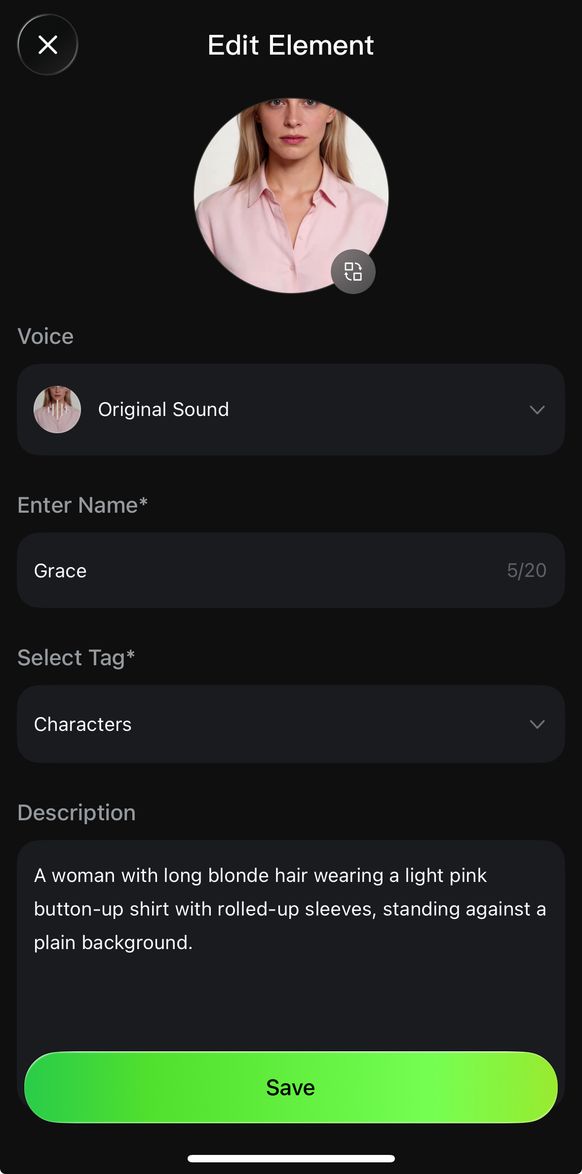
| For character elements, you can select the corresponding voice. You can bind the specific voice from an uploaded audio file, choose from the existing Voice Library, or create the element as a "No Voice" subject. |
Upload Additional Reference Images
|
| You may upload 1–3 supplementary reference images from different angles or showing additional details. Providing more reference images helps improve multi-view consistency. |
Enter the Subejct Name and Description |
| Give your Subejct a name. We recommend choosing a distinctive and relevant name to make it easier to locate and reuse later. Each name must be unique within your Element Library. You can fill in the description manually or use AI Auto-Description, which extracts the key features of the element. For best results, we recommend the description include:
|
Complete |
| Click Generate to save the element to your Element Library. You can then directly use it in both image and video generation.
|
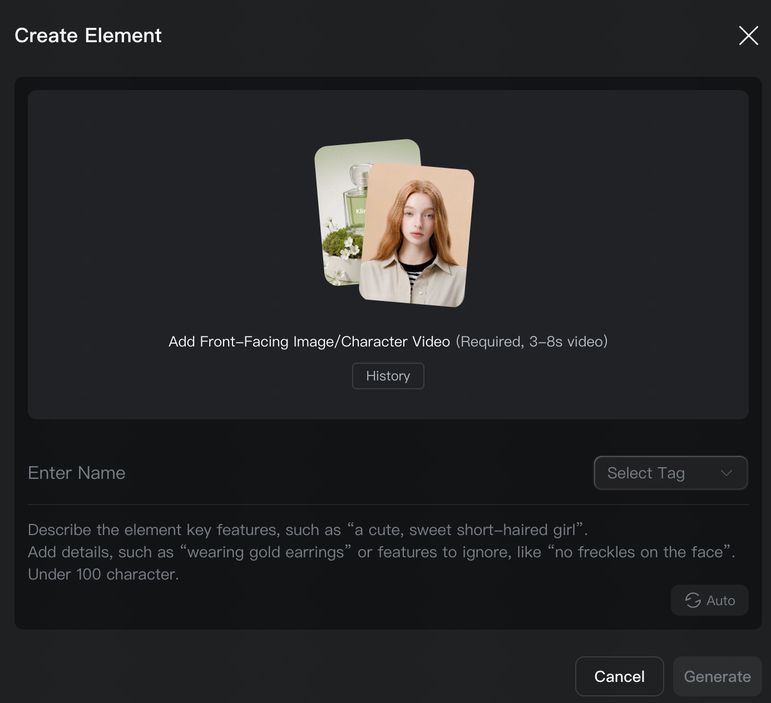
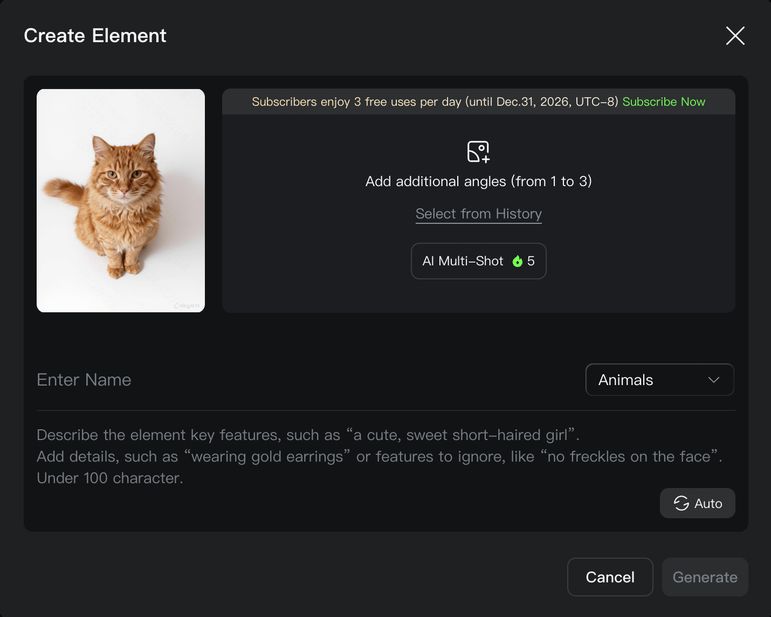
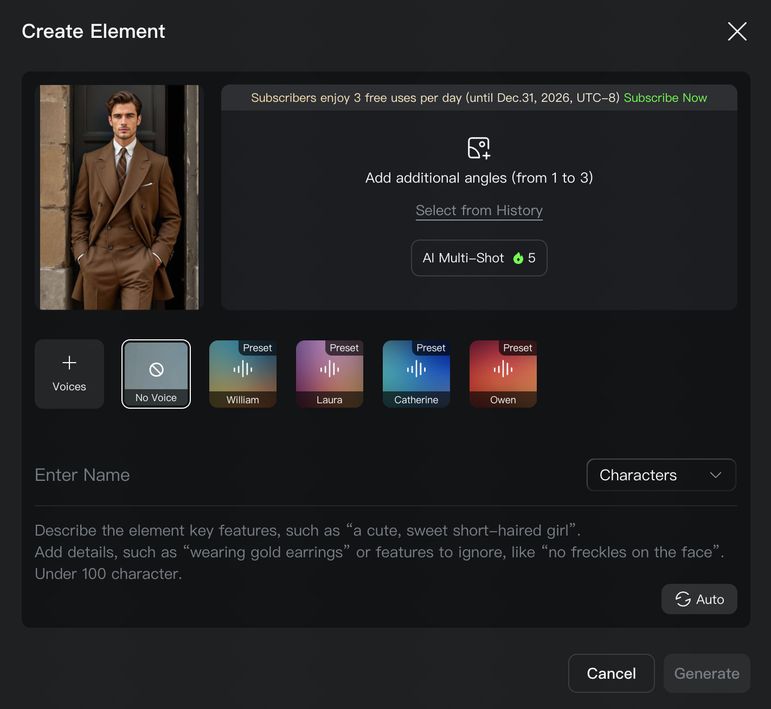
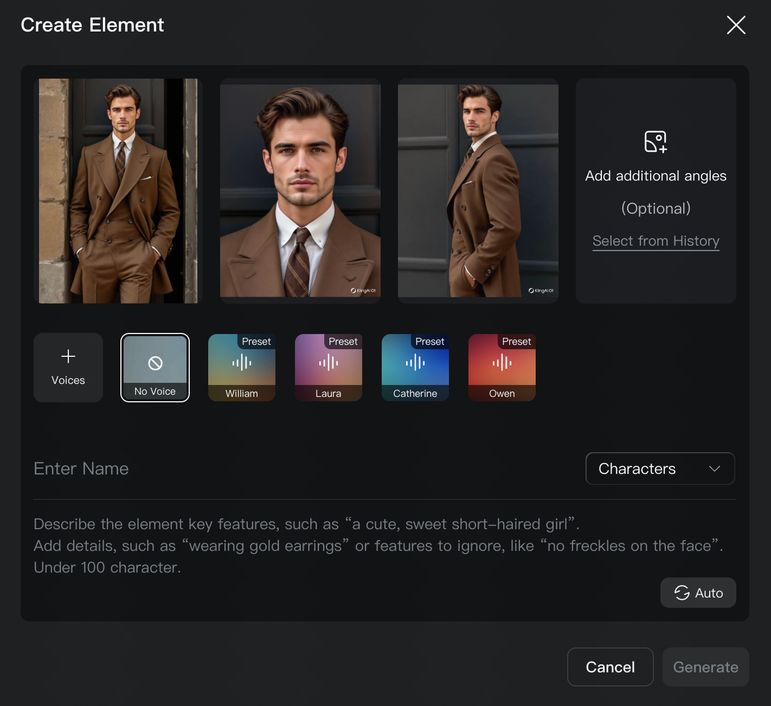
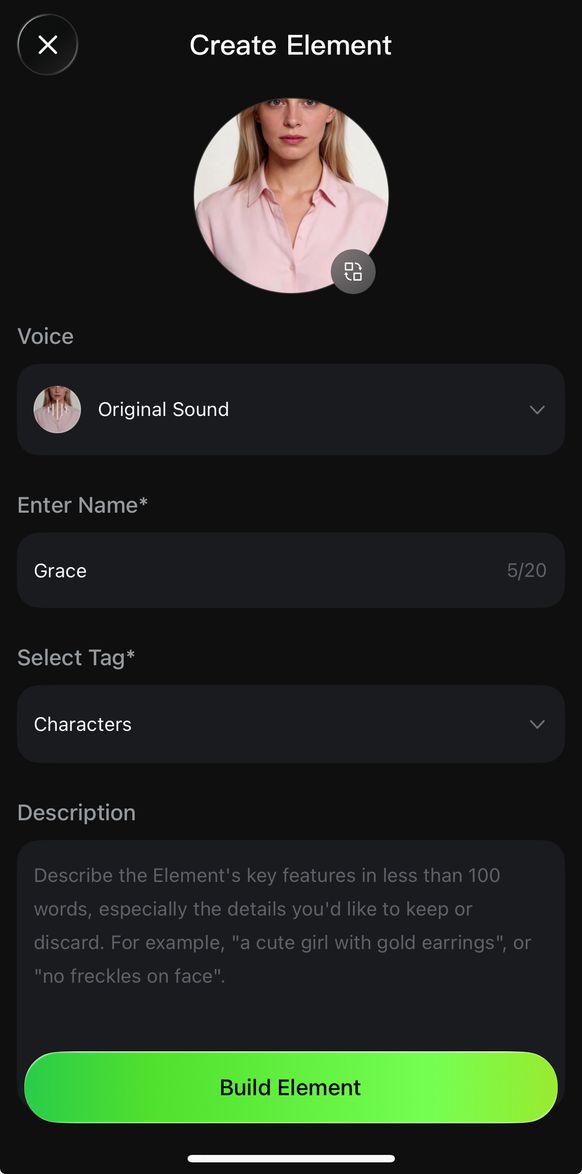
Create Video Character Elements
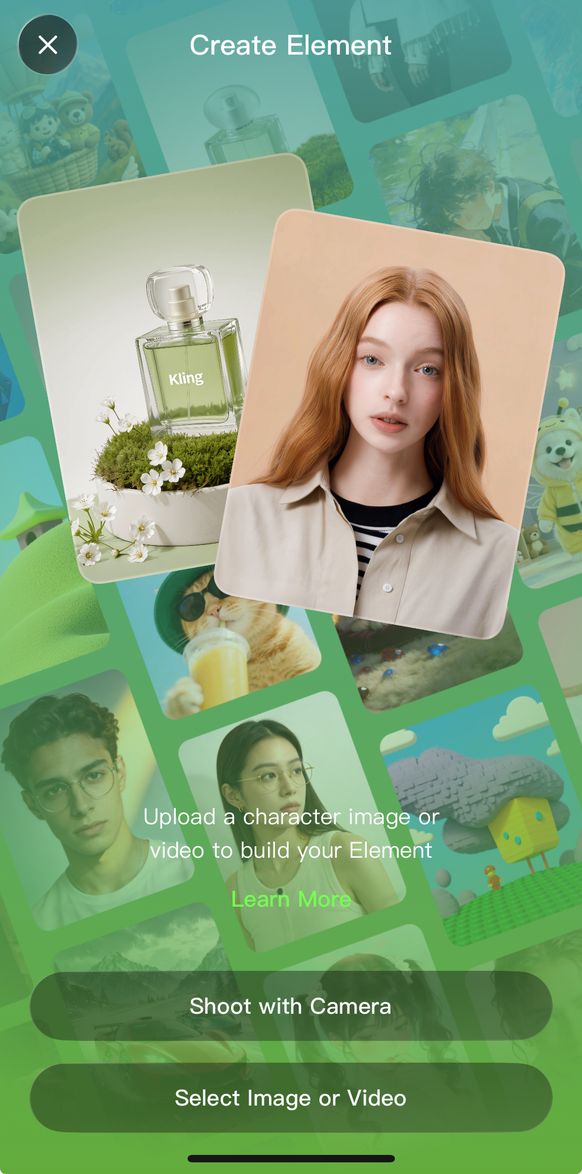
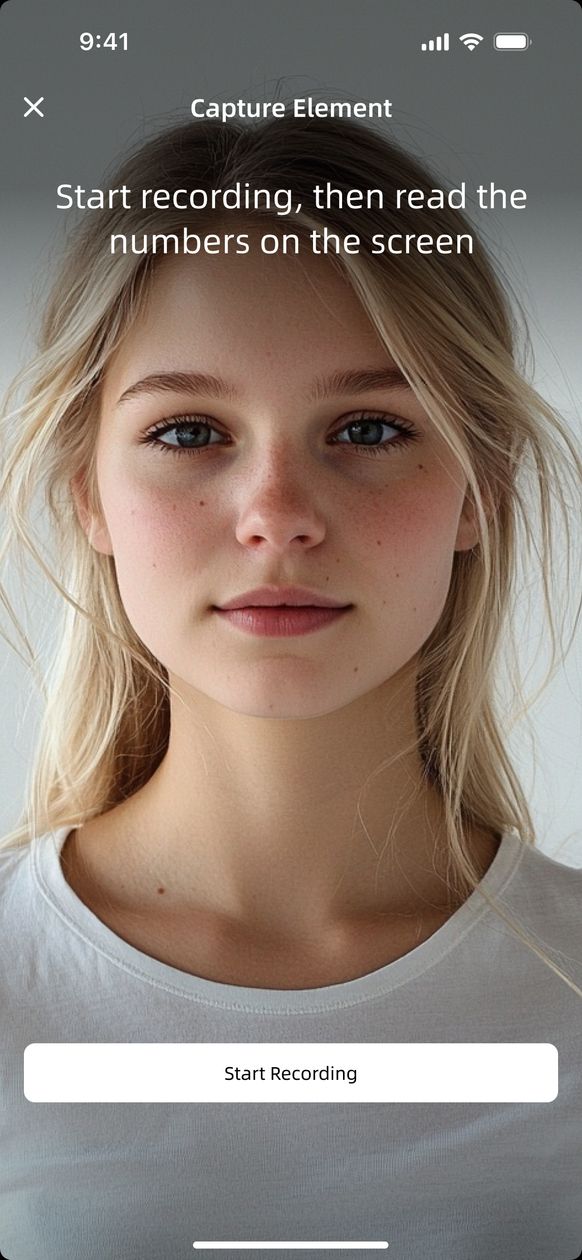
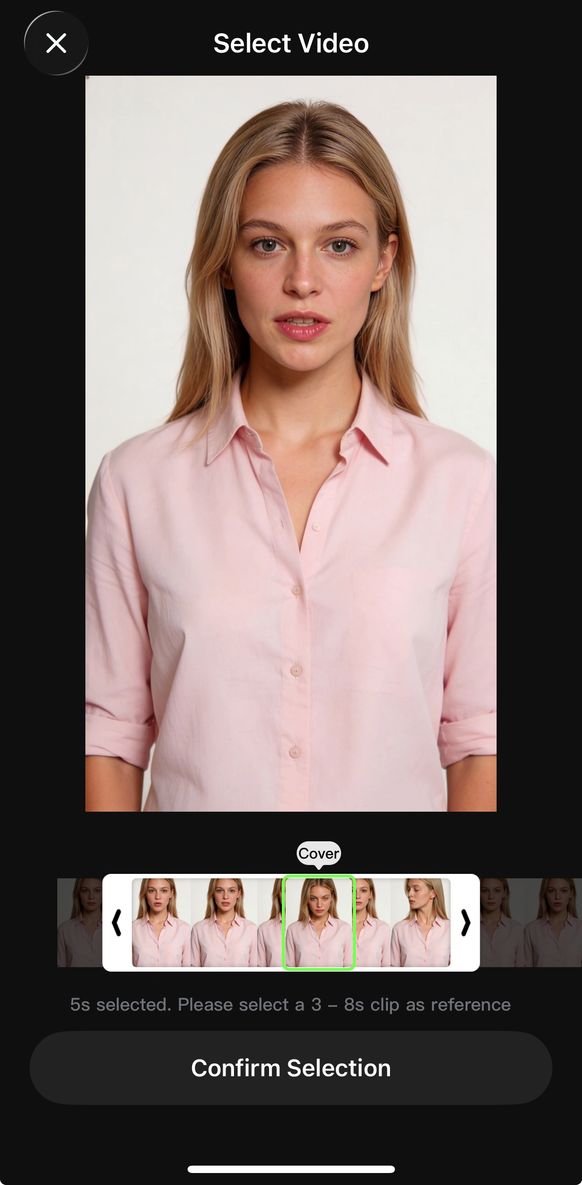
(1)You can record video to create character element (APP only)
Create Element | Trim Duration | Complete Information |
|
|
|
Click to record a character video and enter the recording stage to create the video element. | Follow on-screen instructions to record the audio and capture multi-angle shots. | Complete the element's voice tone, name, description, and other details to finish creating the video character element. |
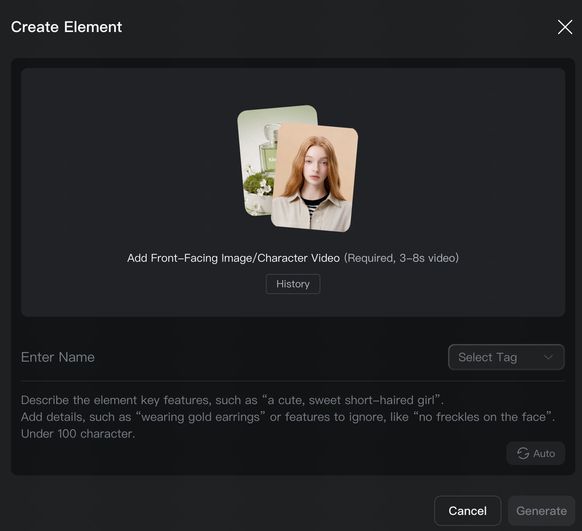
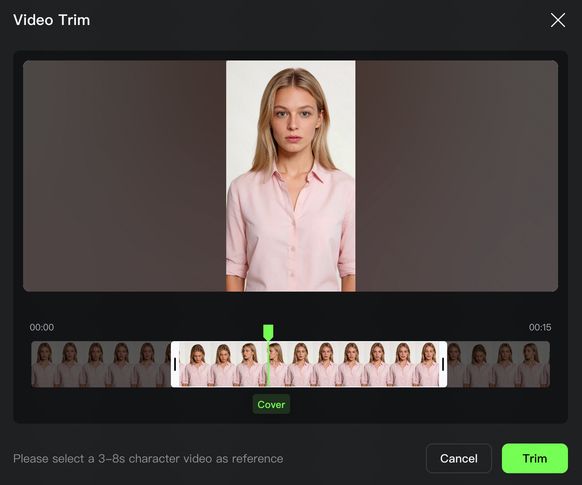
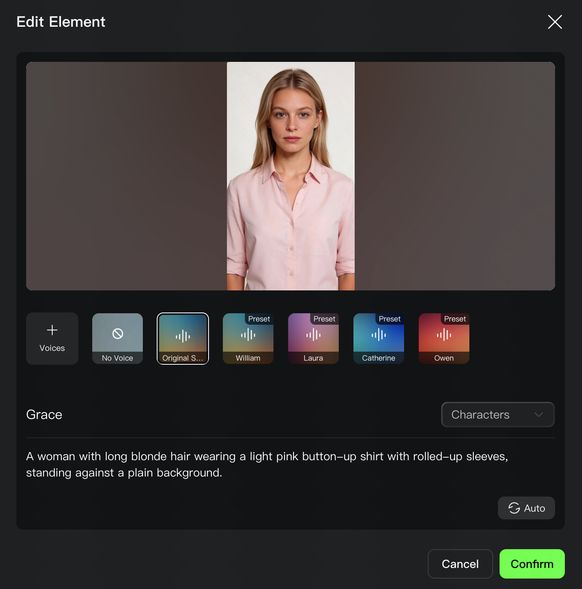
(2)You can upload video to create character element
Create Element | Trim Duration | Complete Information |
|
|
|
|
|
|
Upload a video to begin creating the element. | Trim the video to the appropriate length, preferably including multi-angle character shots. | Complete the element's voice tone, name, description, and other details to finish creating the video character element. |
Examples
Video Character Elements
Element/Reference Image | Description | Output |
Element 1:@Shirt Boy 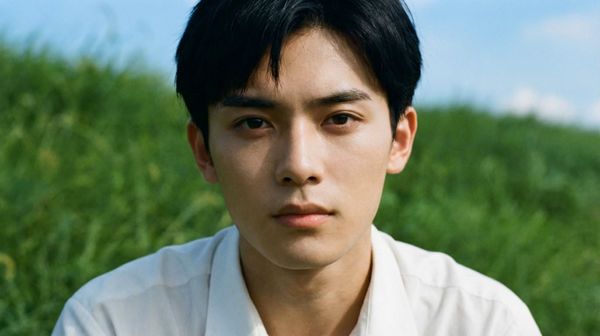 Reference Image 1:
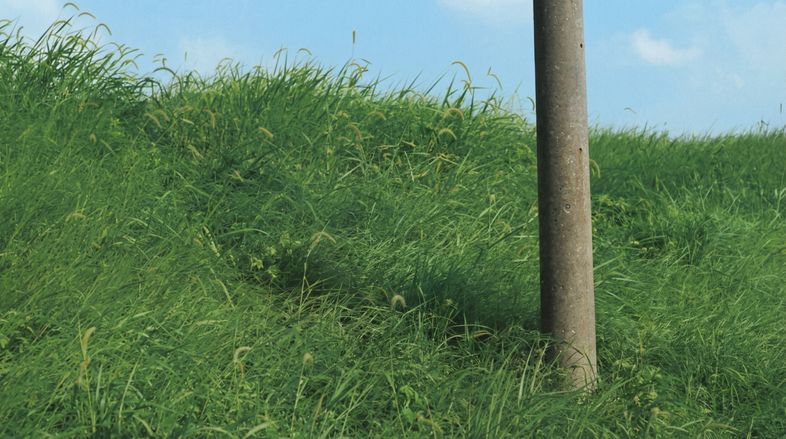
| Shot 1: 3s, medium shot, front-facing angle. [@Shirt Boy] walks down the hillside and sits by the pole in [@Image]. Shot 2: 3s, close-up, facial close-up. [@Shirt Boy] leans against the pole and says, “今天的风,比昨天软一点… 连草叶都变得温柔了,” with a cinematic feel. Shot 3: 2s, side close-up, facial close-up. [@Shirt Boy] closes his eyes as the sunlight gently touches his face. Shot 4: 2s, overhead shot. [@Shirt Boy] lies back, with grass leaves covering his shirt, his arm resting behind his head as he gazes at the blue sky and says, "希望这样的夏天,永远不会结束." | 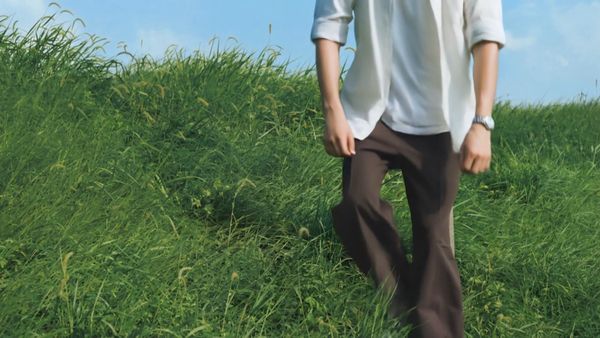 |
Multi-Image Elements
Element/Reference Image | Description | Output |
Element 1:@Little Scholar
Reference Image 1:
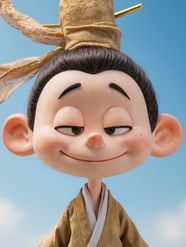
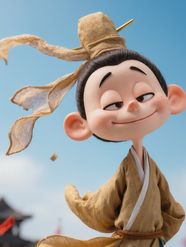
| Shot 1 (3s): Close-up on the comedy open-mic stage, with a large retro neon "KLING" sign in the background. Warm golden backlight outlines the scene. The camera follows the performer as they walk to the microphone, lightly adjusting its height. Shot 2 (4s): Mid-close shot of [@Little Scholar], who says, "Forget the crazy diets. I’m on a strict seafood diet." Shot 3 (4s): [@Little Scholar] with a restrained, slight smile, naturally pausing, saying, "It’s very intuitive: I see food... and I eat it." Shot 4 (2s): Switch to the audience laughing loudly. |
|
Start Frame + Reference Elements for better consistency
Input | Description | Output (Start Frame&Reference Elements) | Output (Start Frame only) |
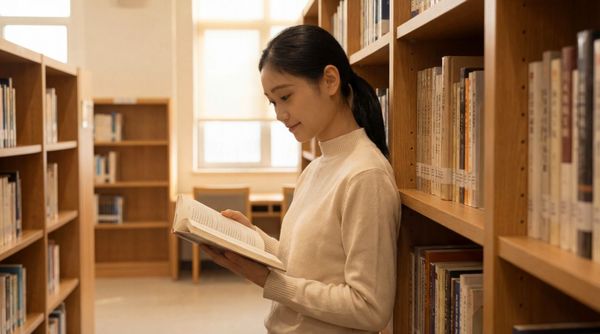
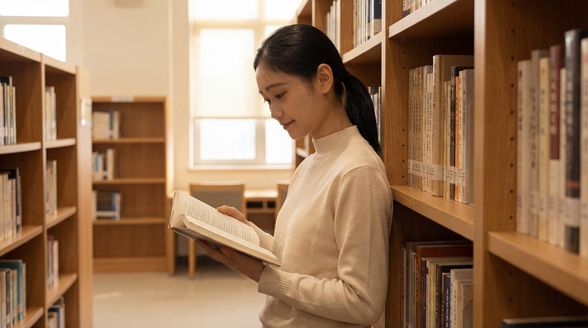
Start Frame:
Element:
| The camera gradually circles to the front of the girl, who then lifts her head, faces the camera, and smiles warmly, as if seeing a long-lost friend. |
 |
 |


Element Use in Image
Element/Reference Image | Description | Output |
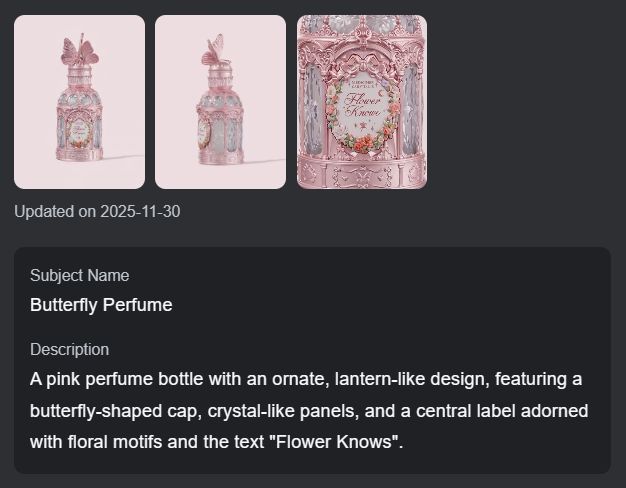
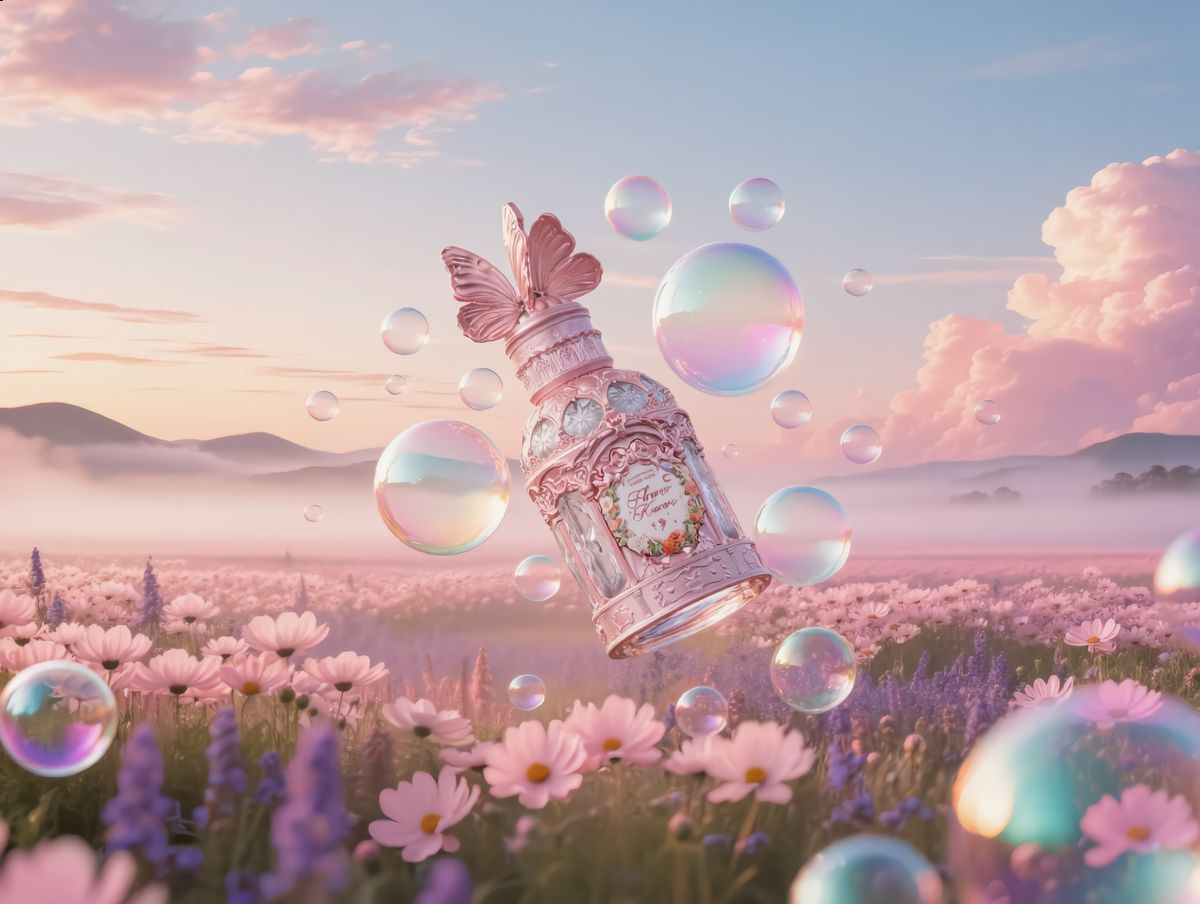
Element 1:Butterfly Perfume
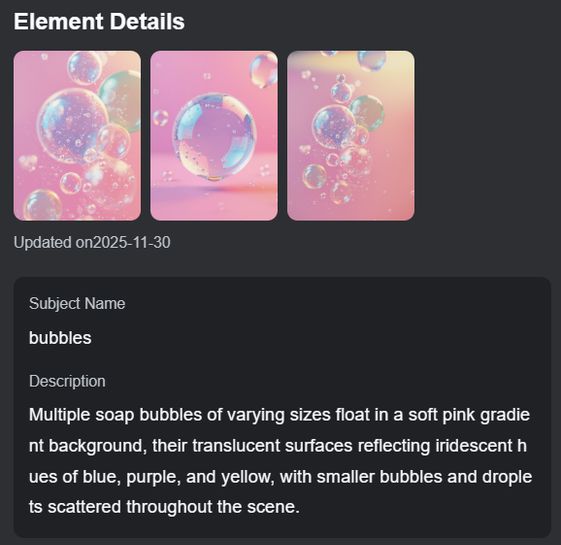
Element 2:Colorful Bubbles
Reference Image 1:
| [@Butterfly Perfumr] floating in [@image 1], Colorful bubbles fill the air, a dreamy advertisement poster. |
|

FAQ
Q:Are there format requirements for uploading multiple reference images or videos in Element Library?
A: You can prepare your elements according to the following formats:
- Multi-Image Elements: Supports uploading or using AI to generate multiple images from different perspectives (up to 4) to form a single element, providing the model with richer reference data. If the element is a Character type, you can also upload a 5-30s single-person speaking audio (formats: mp3, wav, mp4, m4a, mov, etc.). It is recommended to use clean background sound, moderate speech speed, and neutral voice with consistent emotion and style to bind a specific voice to the character.
- Video Character Elements: Supports uploading a 3–8s video clip of a single character to create a more vivid and information-rich video character element. The vocal audio in the video can be bound to the character’s voice.
Q: How many elements can I use in a single video or image generation?
A:
- In Video 3.0 Omni or Video O1, if there is a video in the input area, you can upload a total of 4 images/elements. If no video exists, you can upload up to 7.
- In Video 3.0, after uploading a frame or start and end frames, you can bind up to 3 additional elements. The elements must appear in the reference frames to enhance their specific consistency.
- In Image 3.0 Omni or Image O1, you can upload up to 10 images/elements in total.
Q: How many elements can I create?
A: Non-members: Up to 30 Elements.
- Standard Members: Up to 50 Elements.
- Pro & Premier Members: Up to 150 Elements.
- Ultra Members: Up to 500 Elements.
If your membership expires or is downgraded, existing Elements can still be used. However, if you exceed the limit of your current tier, you will not be able to create new elements or edit existing ones.
Q: Does it cost anything to create an element?
A: Creating an element is free.
If you need to use the AI multi-view completion feature:
- Members receive 3 free uses per day, and each additional generation costs 5 credits.
- Non-members are charged 5 credits per generation.
Q: Can I use someone else’s element?
A: The Element Library does not currently support sharing elements to the Explore feed. However, videos generated using your elements can be shared to the Explore feed, and other users will be able to recreate your work with one click.