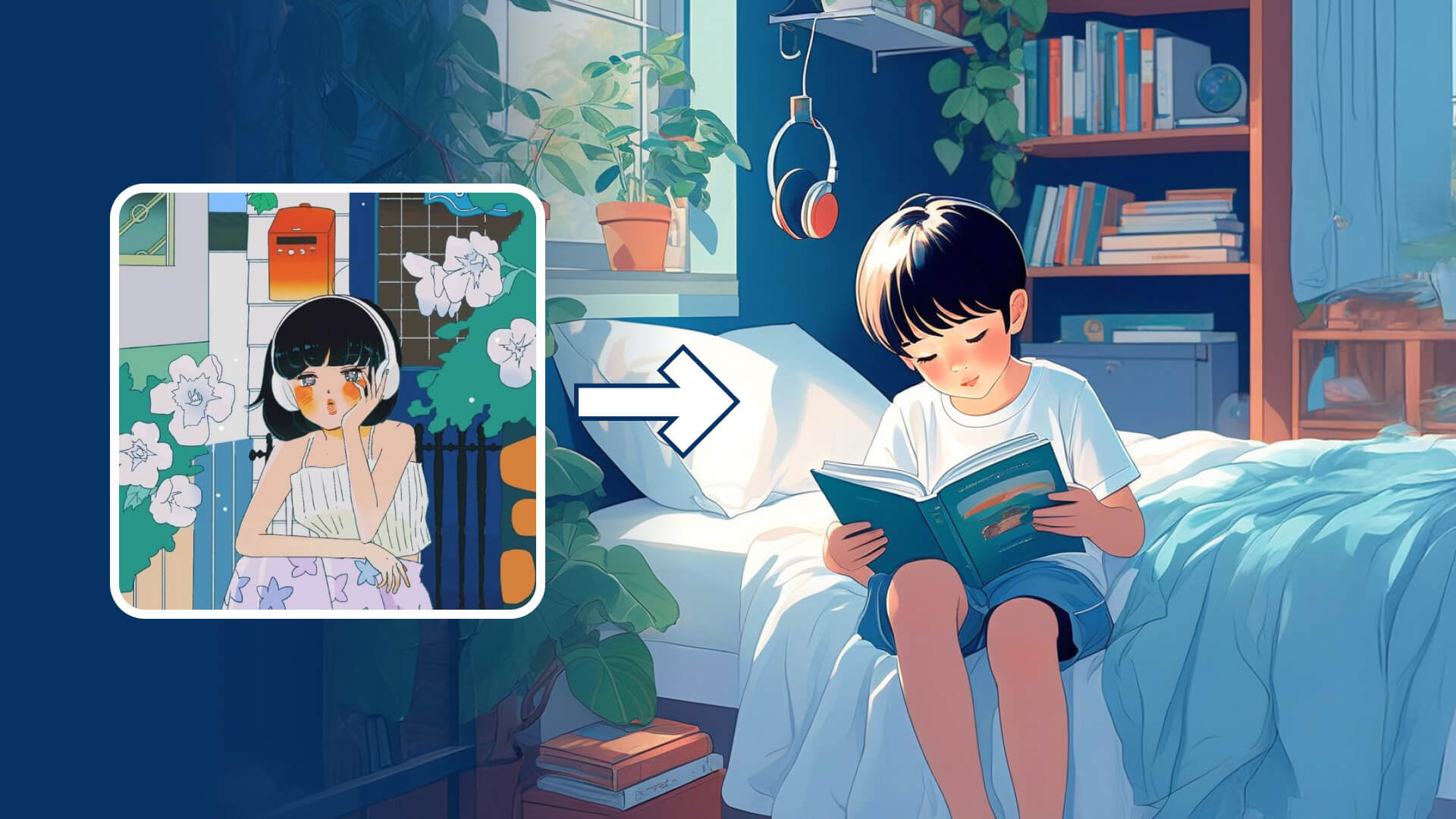
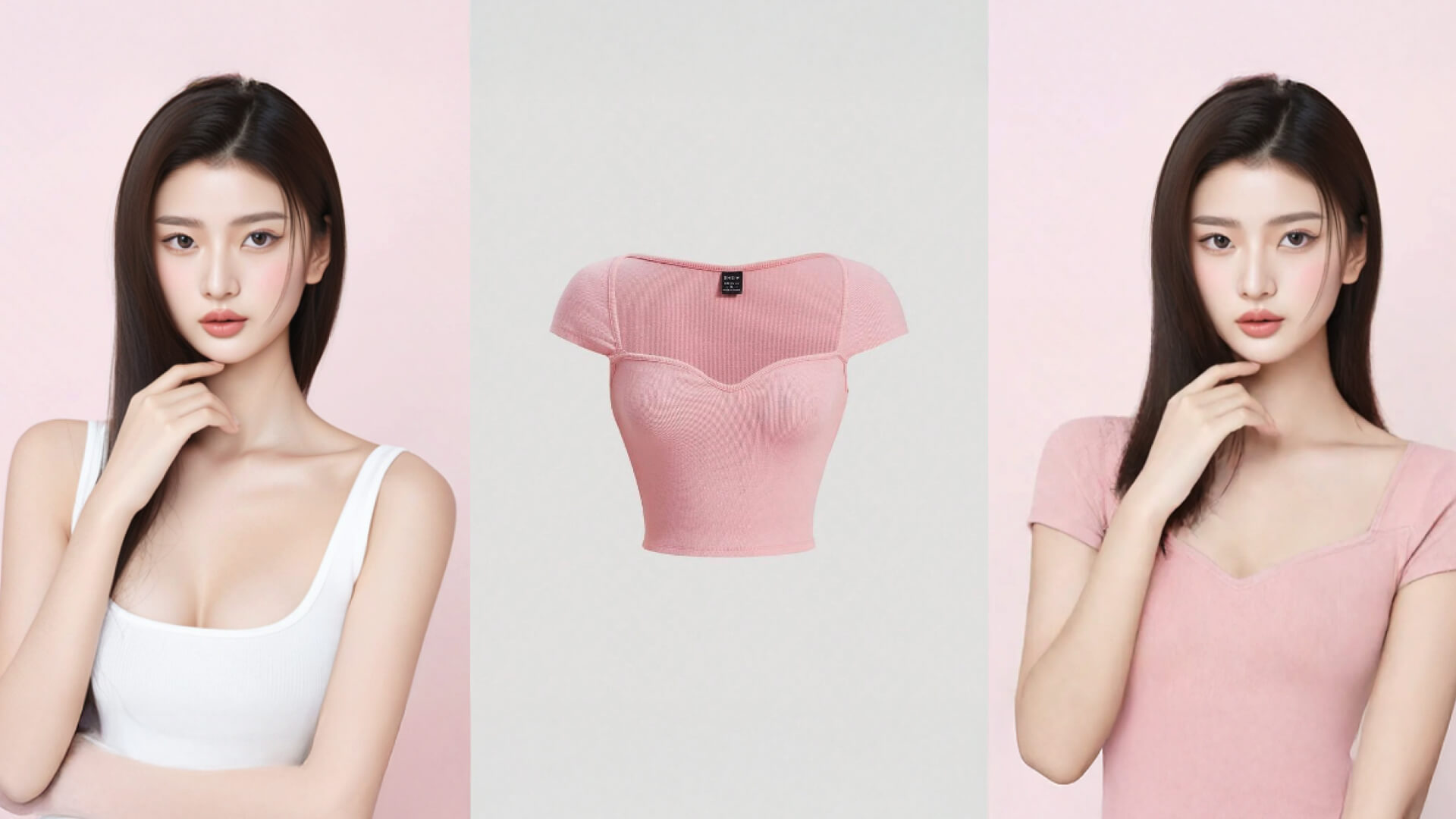
Before we start this user guide, let’s briefly introduce the AI image functions. AI image currently mainly includes two functions: 【Text-to-Image】 and 【Reference/Base Image】. 【Text-to-Image】 allows you to generate AI images that match the text description by inputting text. 【Reference/Base Image】 refers to uploading a reference or base image as an additional parameter on top of 【Text-to-Image】 to generate image results related to the content of the reference/base image. Using the 【Text-to-Image】 function is not complicated, and the steps have been simplified on the platform to:
Here are the steps:
Step1: Input prompt | Step2: Upload reference/base image | Step3: Select other parameters | Step4: Generate image with one click |
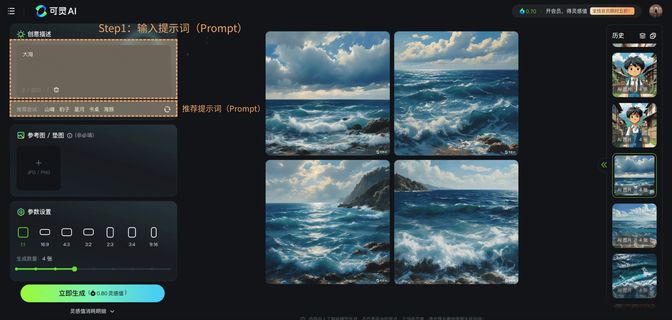 | 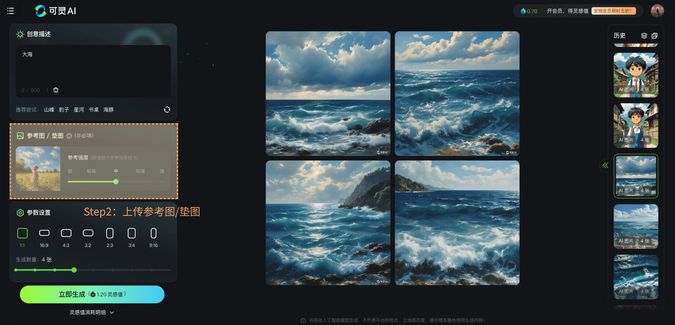 | 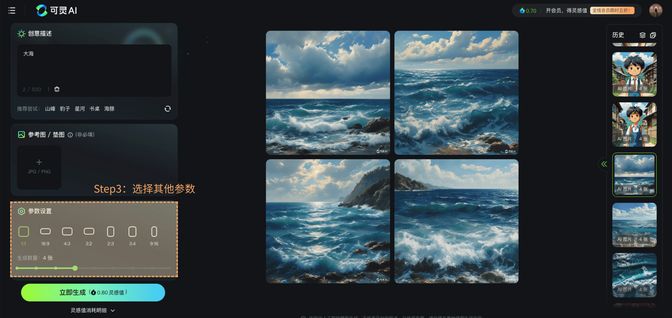 | 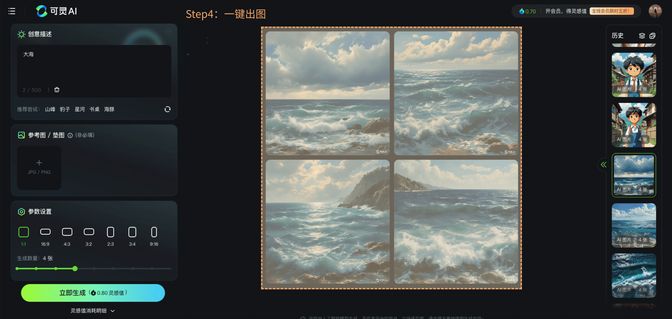 |
You can enter any text in the 【Creative Description】 module. The platform currently supports Chinese/English input, but please note that the word limit is 500 characters or less. When you’re temporarily lacking inspiration, you can use the prompts we’ve prepared in the 【Recommend trying】 section to generate images. | Additionally, during the process of generating images from text, you can use the【Reference/Base Image】 function by uploading a 【Reference/Base Image】. Just click the upload button, and you can select an image from your local files or from the platform's history of generated results. Please note that the platform currently does not support files other than JPG and PNG formats, and the file size should not exceed 10MB, with dimensions no smaller than 300px. | In the 【Parameter Settings】 module, you can flexibly set the size and number of images to generate. The platform currently supports generating 7 image sizes, and you can generate up to 9 images at once. | Finally, just click 【Generate】 to generate your image results! |
After generating an image, you can perform actions such as 【Like/Dislike】, 【Favorite】, 【Download】, 【Reference/Base Image】, 【Generate Video】, 【Delete】, and 【Report】 on your result. 【Like/Dislike】 allows you to provide feedback on your generated result, 【Reference/Base Image】 means you can use your generated result as a reference or base image, and 【Generate Video】 allows you to convert your generated result into a video.
【Like/Dislike】 | 【Reference/Base Image】 | 【Generate Video】 |
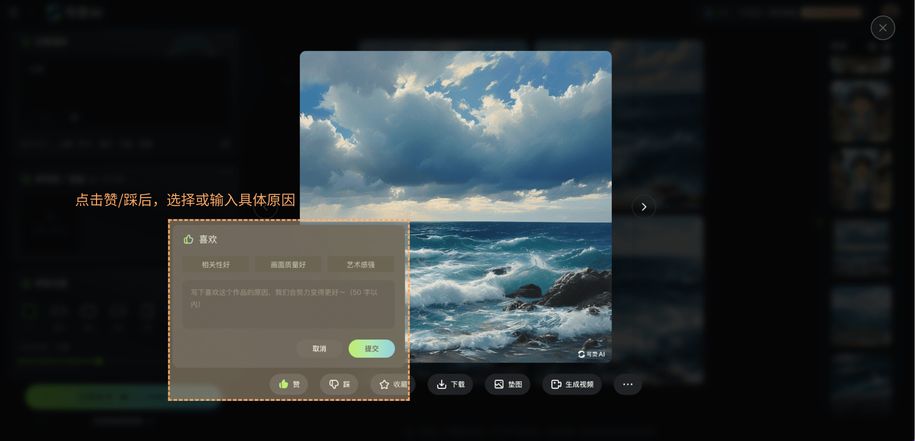 | 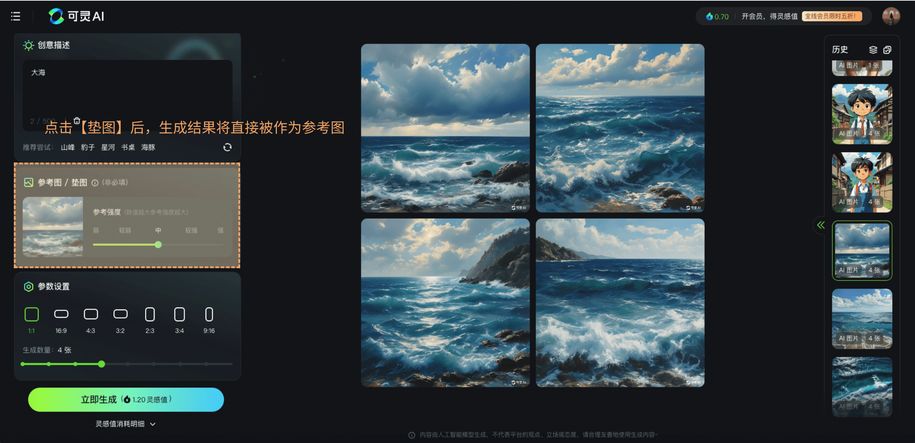 | 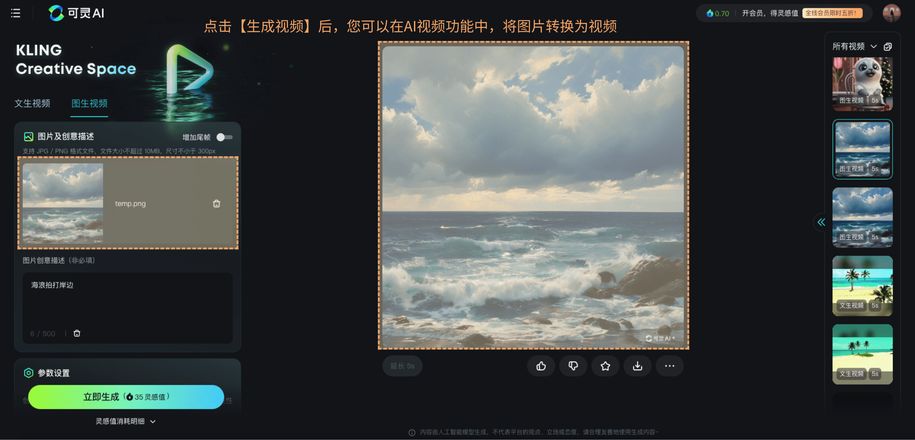 |
After clicking 【Like/Dislike】, you can continue to select or input the specific reasons why you like or dislike this image. Your feedback will help us to improve. | After clicking 【Reference/Base Image】, your generated result will be directly used as a reference image. | After clicking 【Generate Video】, you will be redirected to the 【Image-to-Video】 module of the 【AI Video】 function. Your image generation result will be used as input to generate a video. Please refer to the AI Video tutorial for detailed steps. |
It can be seen that the final image result is determined by three factors: the prompt, the reference/base image, and the parameter settings. The prompt and the reference/base image mainly determine the content of the image, while the parameter settings determine the basic attributes of the image result. In the first part, we will introduce how to write prompts to help you better communicate with the text-to-image model and generate images that meet your needs.