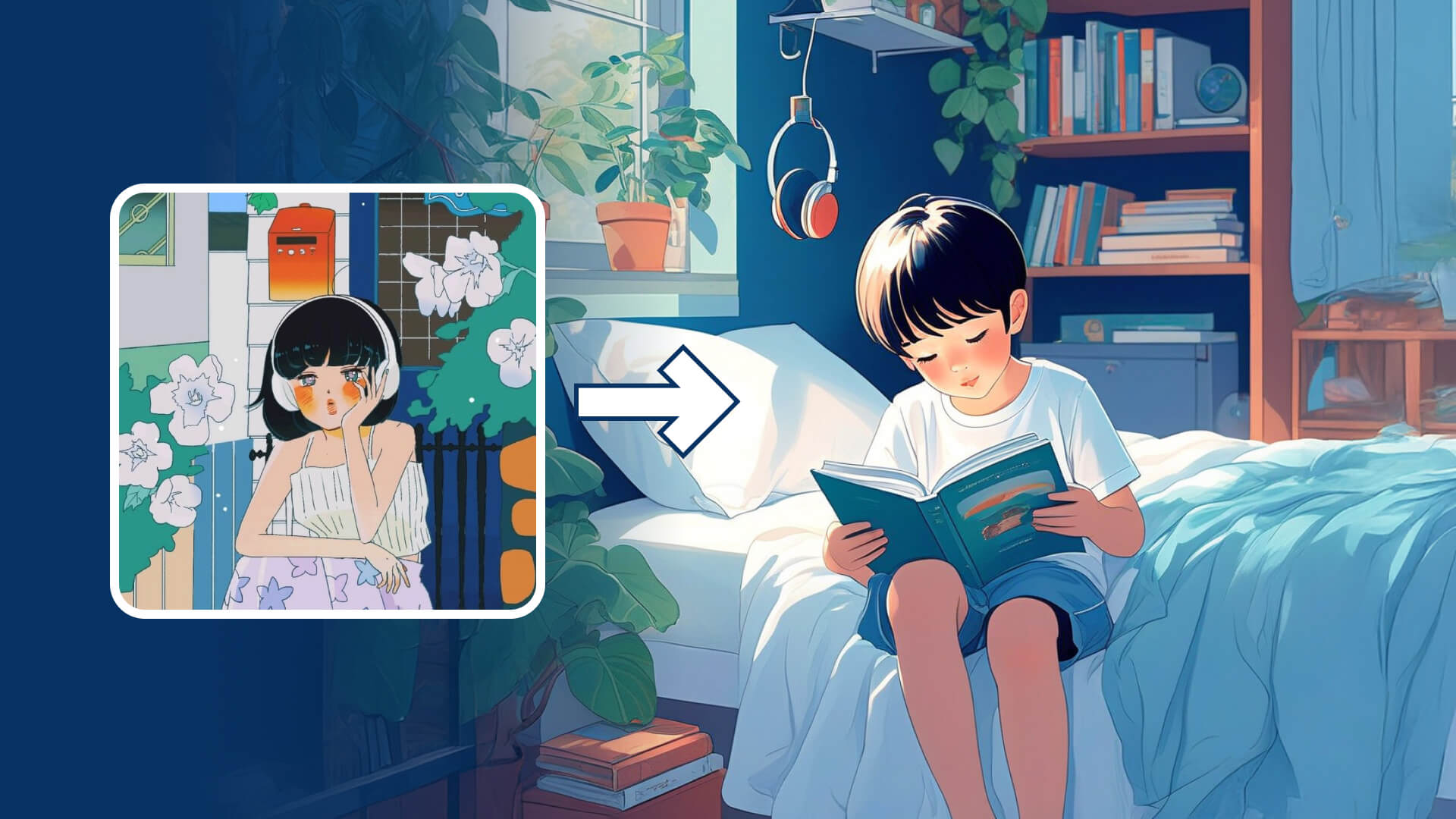
Motion Brush Feature: By uploading an image, users can designate an area or element within the image using either "automatic selection" or "manual brushing" and add a motion trajectory. Users then input the desired motion prompt (element + motion). After clicking "Generate", the model will create a video based on the specified motion. This allows users to control the motion of specific elements and make the image-to-video generation more advanced and controllable.
The Motion Brush Feature, with its advanced controllability in image-to-video generation, allows users to specify the desired motion for certain areas or elements. For example, it can generate complex motions like "ball games", handle the movement and changes in direction of people/animals and supports simultaneous settings for up to six elements and their trajectories. Additionally, the "Static Brush" feature enables users to designate static areas by brushing and fix pixels in the brushed areas, preventing camera movement. If users want to avoid camera movements caused by the motion trajectory, it is recommended to add a static brush at the bottom of the image.
Text Prompt | Image&Motion Prompt | Results in Standard Mode | Results in Professional Mode |
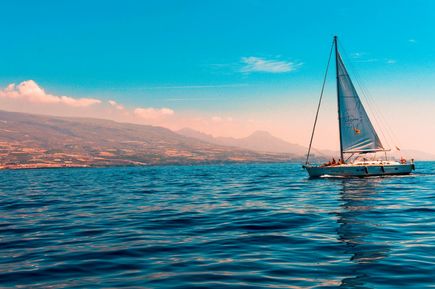
A sailboat moves slowly on the sea, creating ripples
|  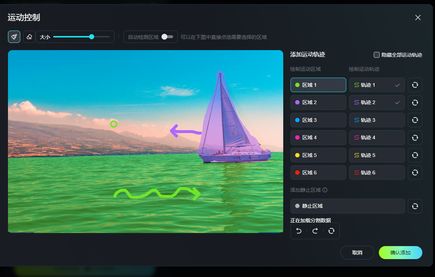 | 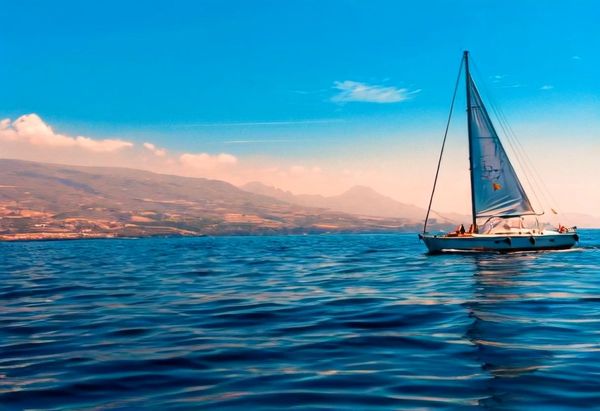  | 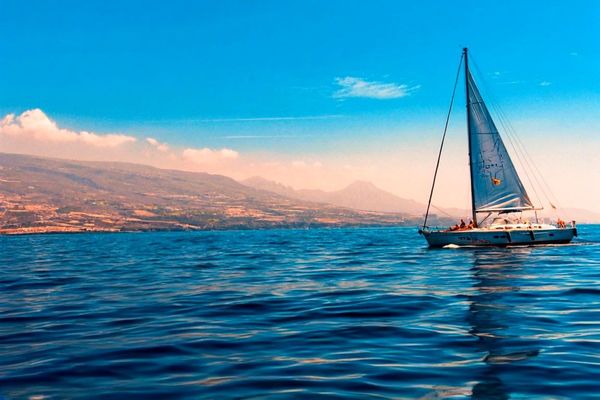 |
| The grass sways in the wind, while two dogs look off in different directions | 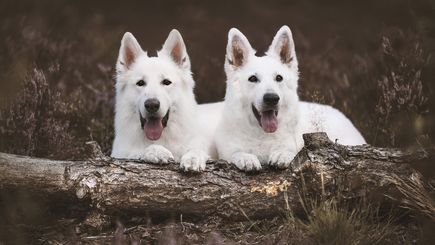 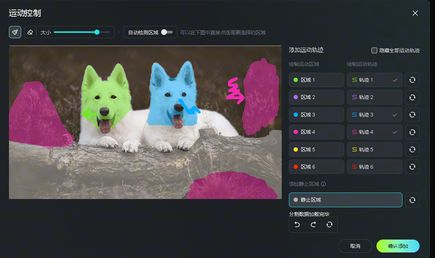 | 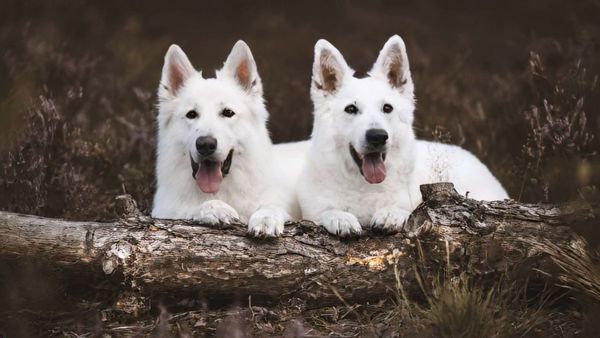 | 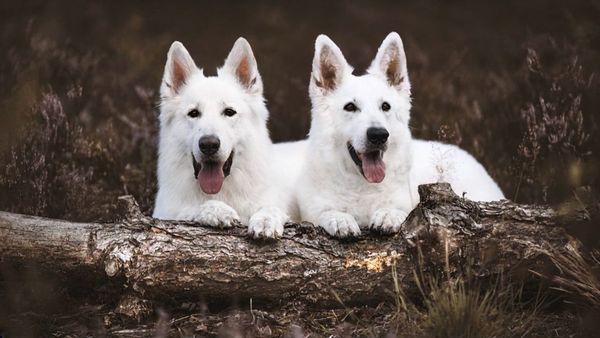 |
| An apple falls in the water | 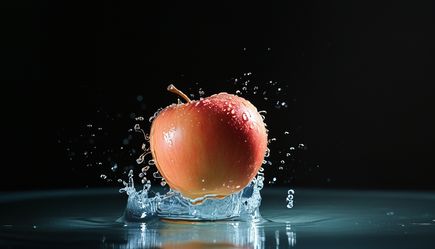 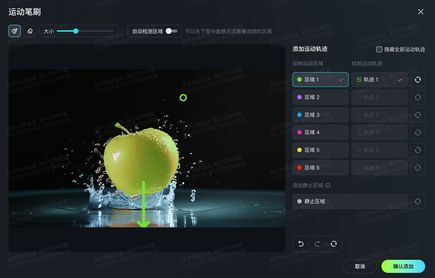 | 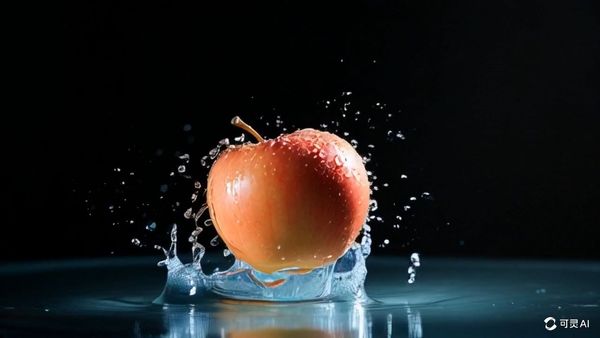 | 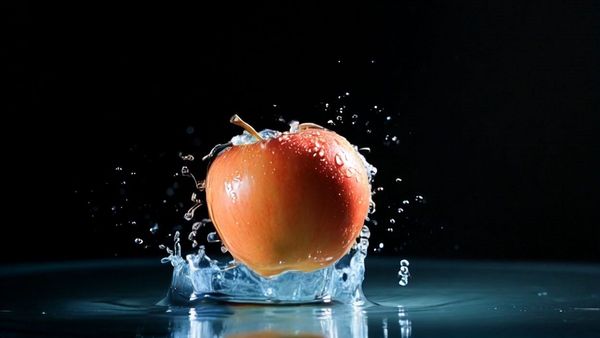 |
- Tips you definitely wanna know!
- When using the Motion Brush feature, be sure to add a text prompt that matches the movement of the area/element. For example, use prompts like "a puppy running on the road" following the "element + motion" format.
Showcase | Success | Failure |
| Intended Result: Have the cat jump over the plate. | prompt:A cat jumps over the bowl in front of it. 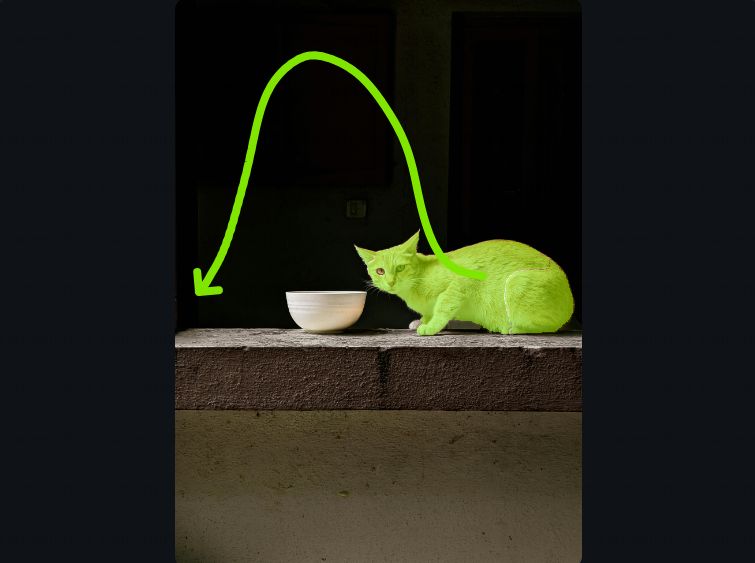 | prompt:A cat walks forward. 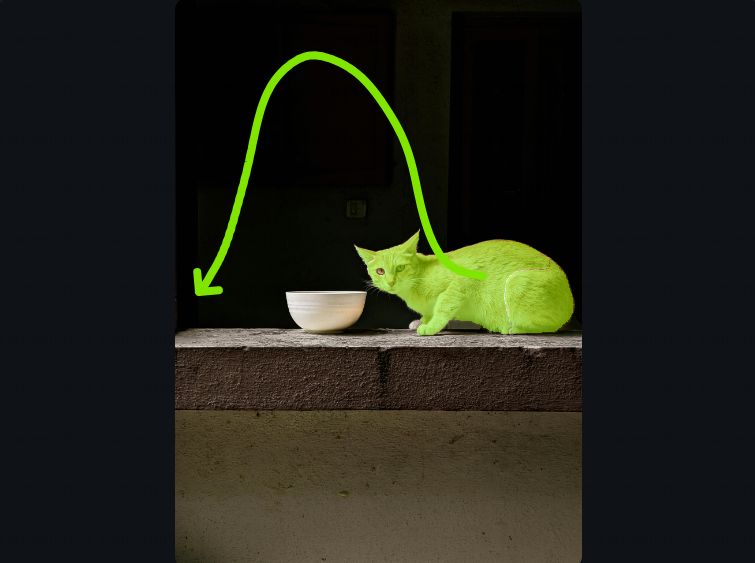 |
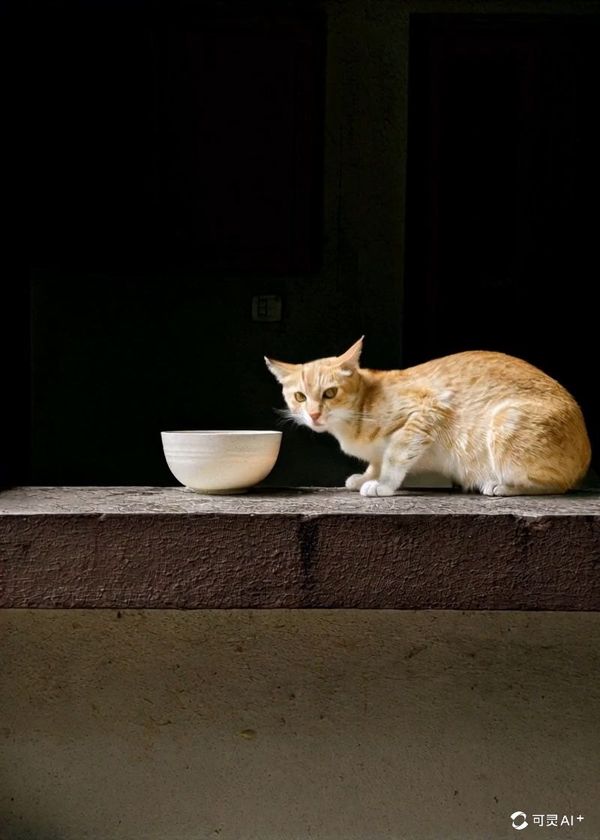 | 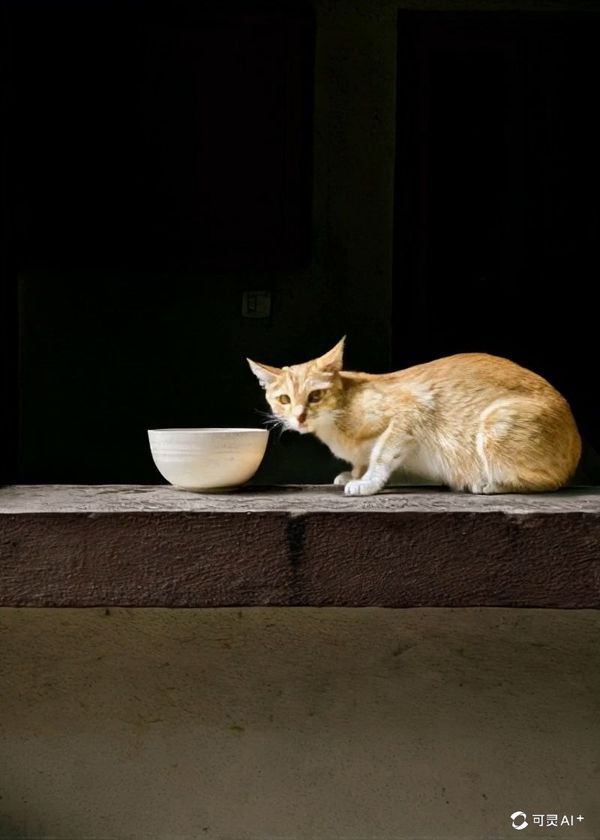 |
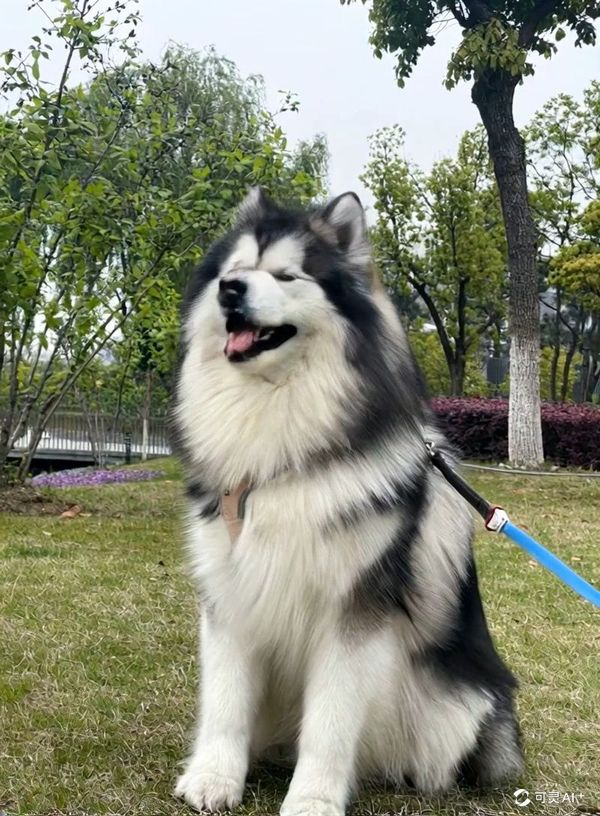
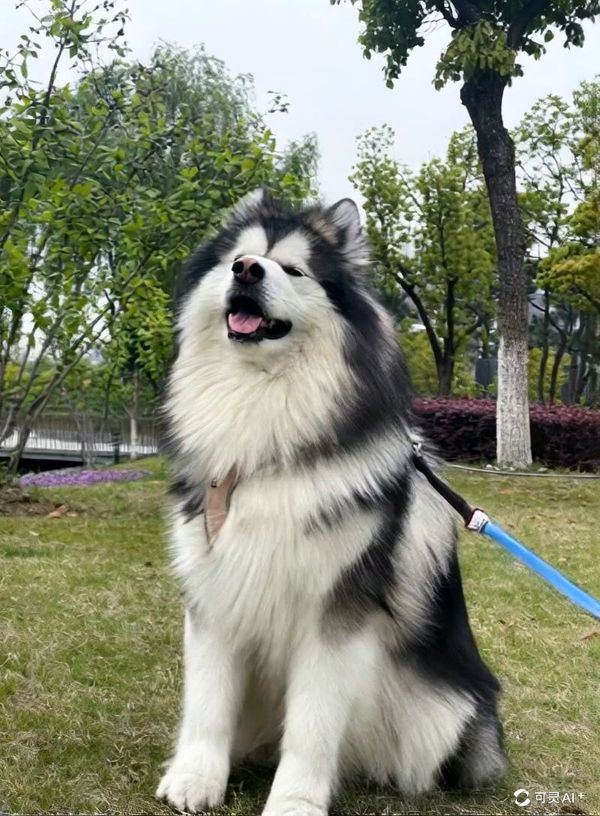
- Selecting ONLY key parts of the object (such as an animal's head) allows for more precise motion control.
Showcase | Success | Failure |
| Intended Result: Make the Husky’s head shake side to side as it sits down | 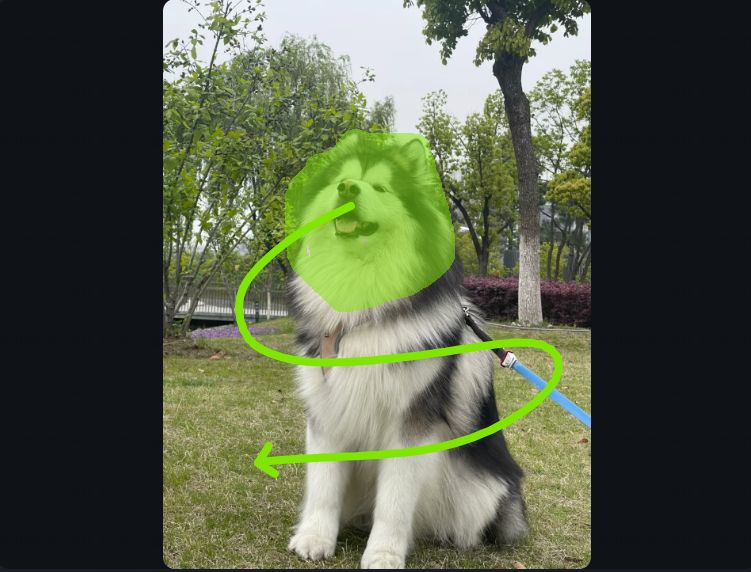 | 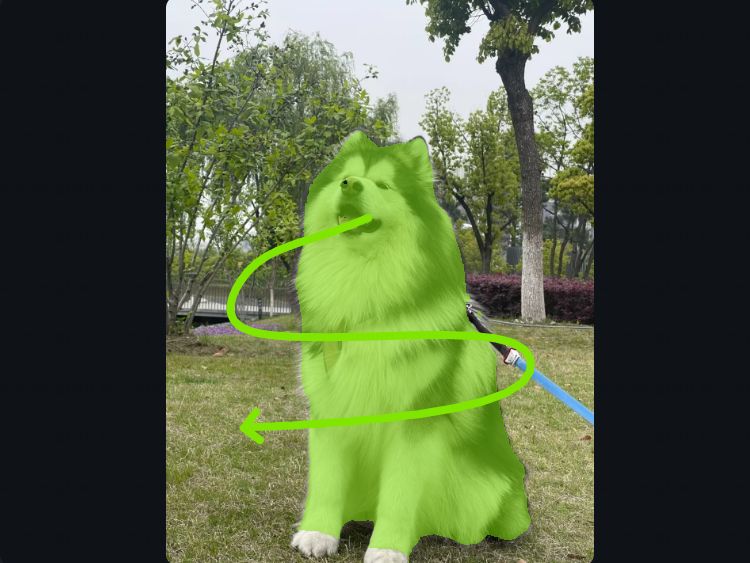 |
 |  |
- Designating a motion trajectory for objects that cannot move in the physical world will lead to results based on the model's interpretation.
Control Panel | Output | Explanation of The Result |
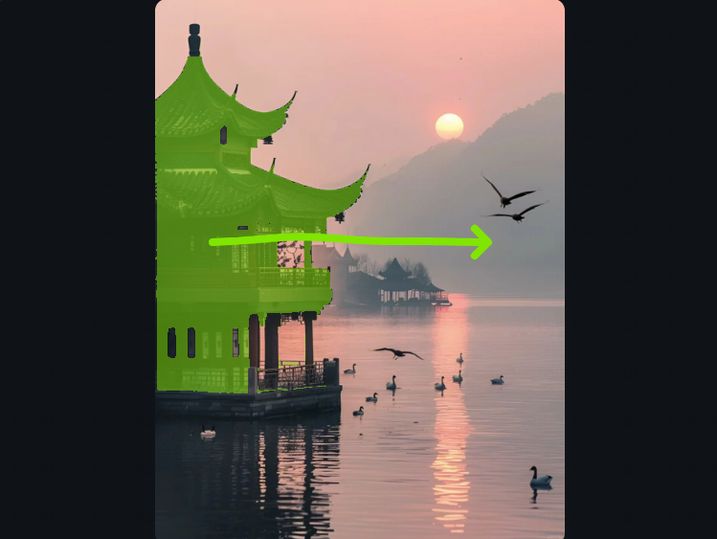 | 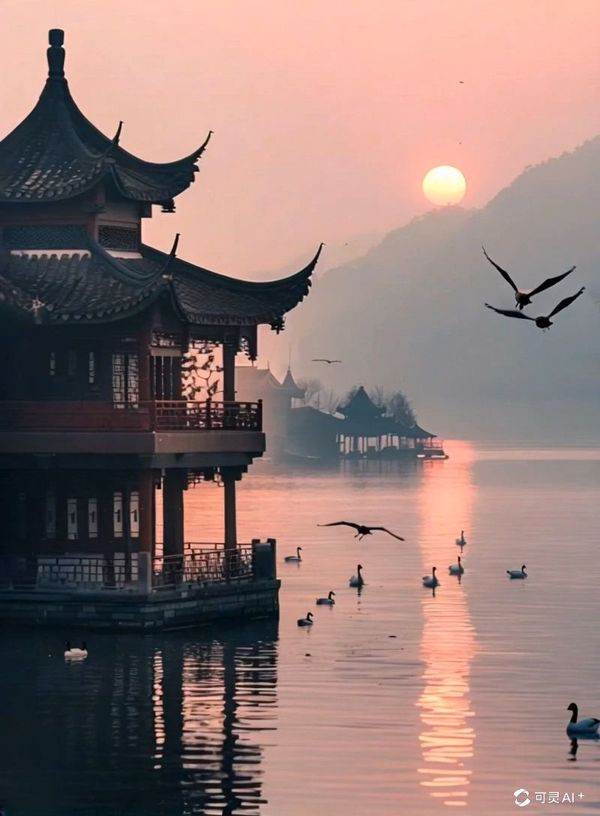 | Since it's difficult for a building to move horizontally in the real world, the motion trajectory for the element will be interpreted as a camera movement path. |
- To avoid camera movement effects, use the "Static Brush" feature. After brushing, pixels will be fixed in the brushed areas.
Control Panel | Output | Control Panel | Output |
Only Motion Brush 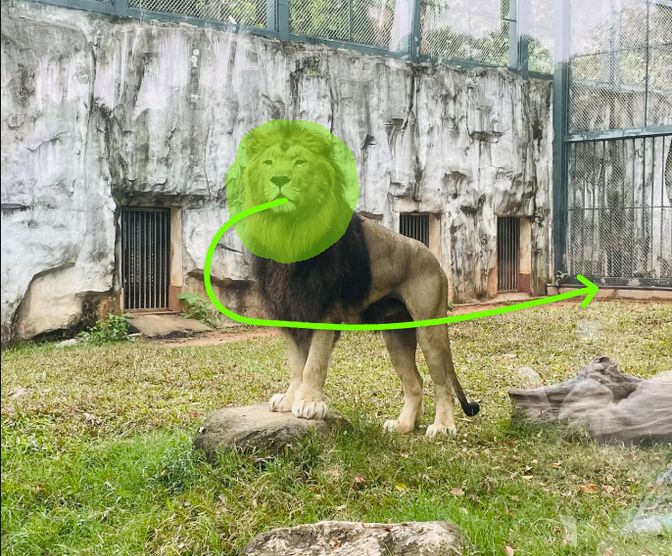 | Motion Brush+Static Brush 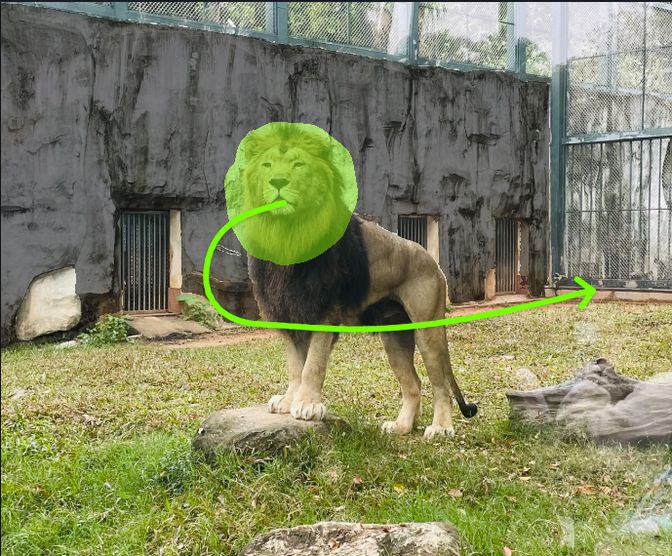 | Only Static Brush 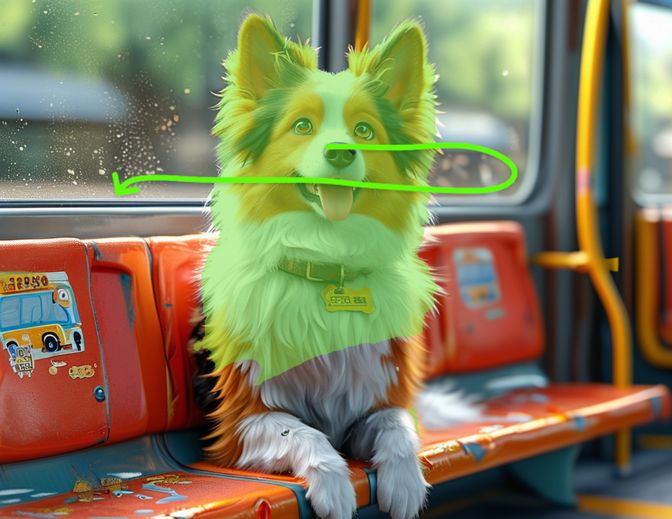 | Motion Brush+Static Brush 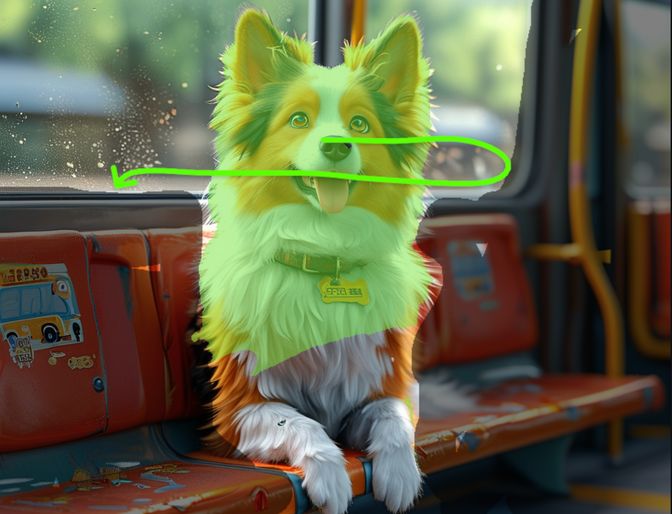 |
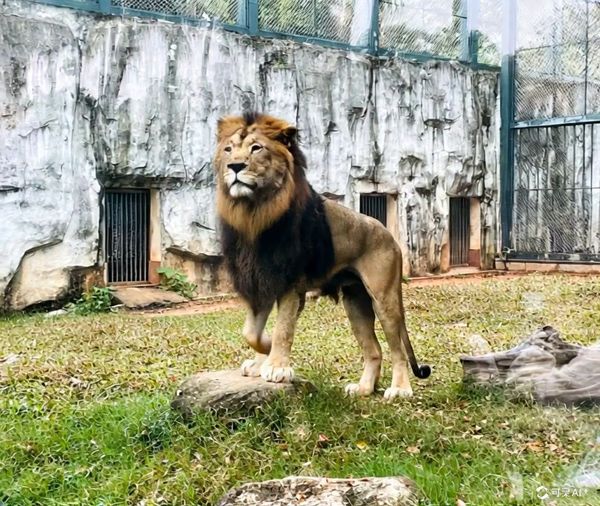 | 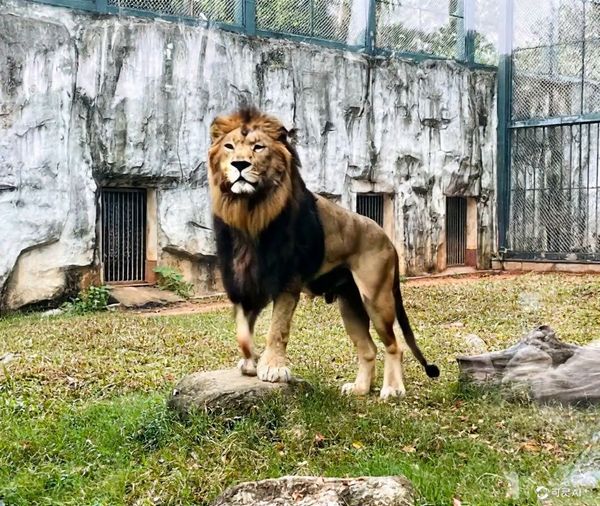 | 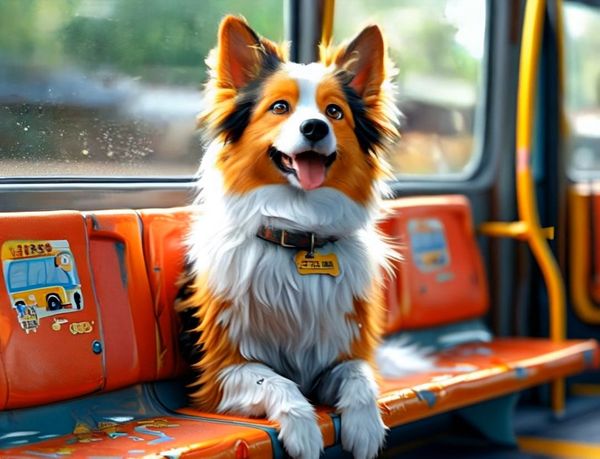 |  |
- Tips for Brushing Area Selections:
- One motion brush covers only one element of a single category【Recommended】
- One motion brush covers one connected area rather than multiple separate areas【Recommended】
- A static brush can cover multiple non-connected areas, but it's still advisable that each independent selected area is of the same category.
Examples | Recommended | Not recommended |
1 | 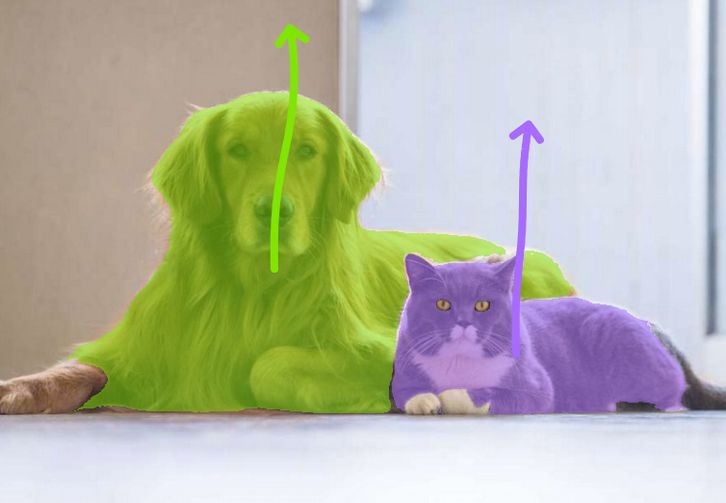 | 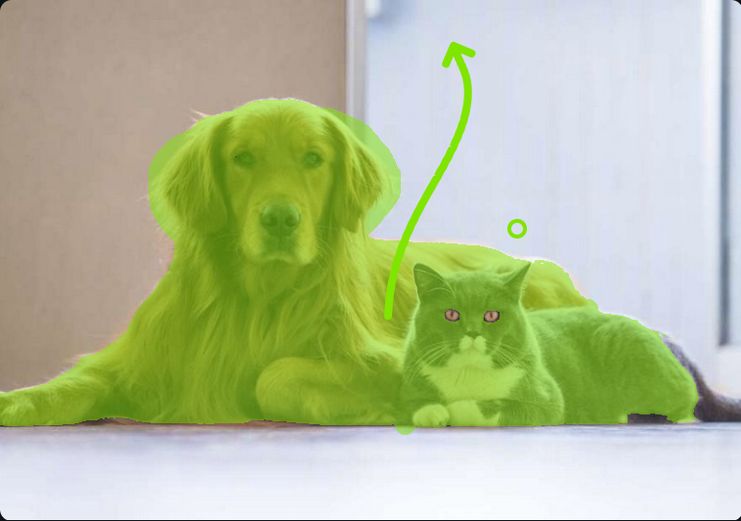 |
2 | 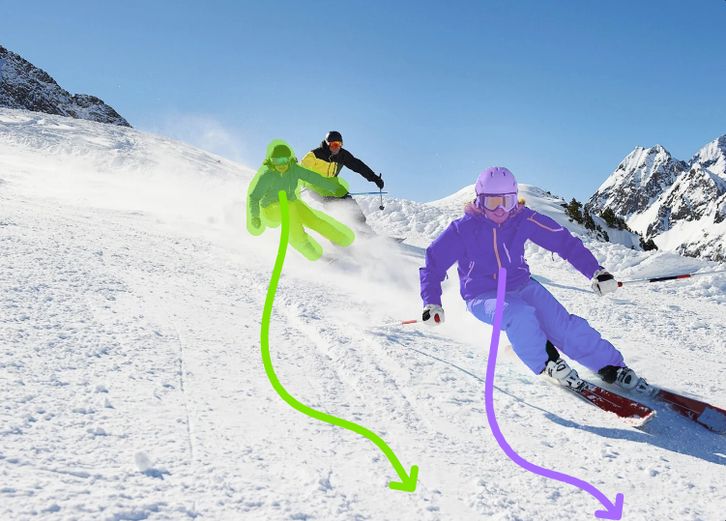 | 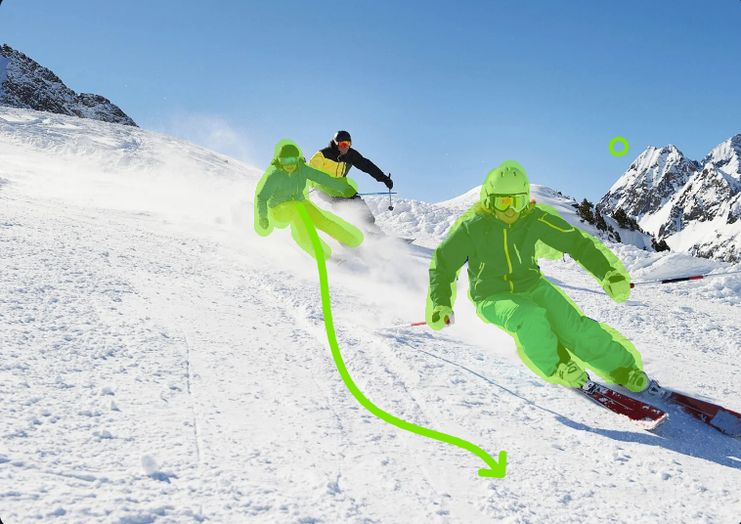 |
- Tips for Motion Trajectories:
- The direction and length of the trajectory curve both have an effect. If the starting point of the trajectory curve is within the selected area, the endpoint is expected to be the element's position at the end of the video.
- The element's movement will strictly follow the drawn trajectory.
Examples | Control Panel | Output |
1 | 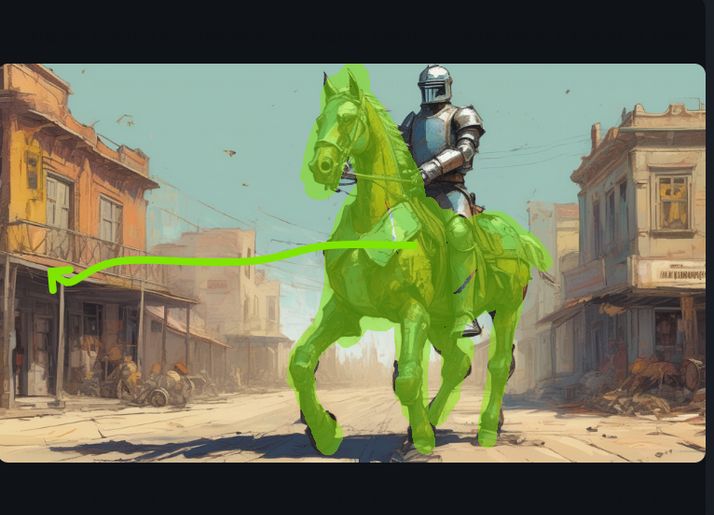 | 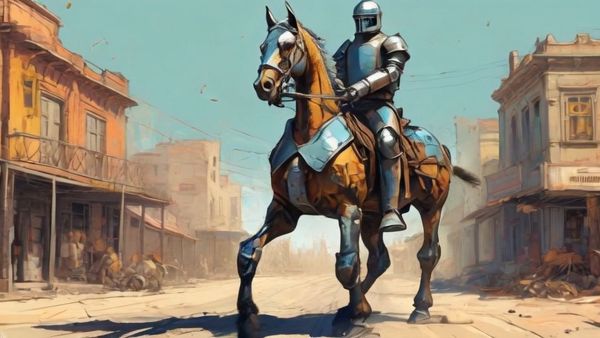 |
2 | 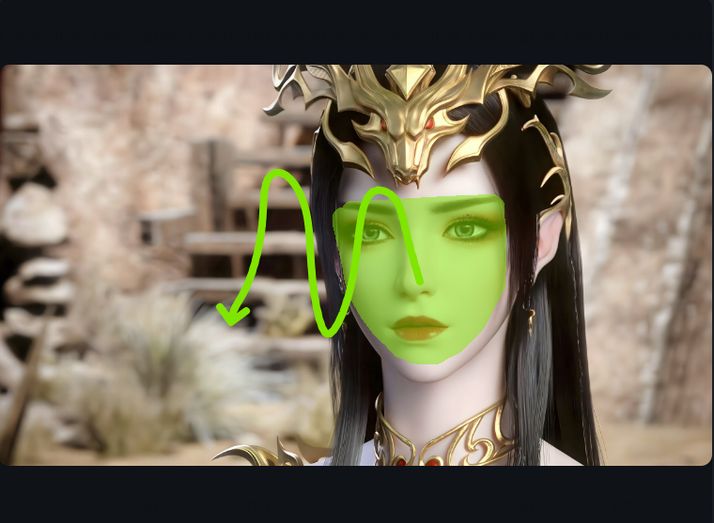 |  |